
 Xbox Cloud Gaming Equirements: Internet, Devices, Controllers
  How to Delete Sent Messages on iPhone From Both Sides
  Real-Time Tracking in the Distribution of Goods
  Portable Monitor For Laptop Guide
  Optimizing Sales Prospecting with Modern Software Tools
  What Is One Way That Technology Can Improve The Distribution Of Goods?
  Xbox Cloud gaming: A Practical Guide For Real Life
  Game Pass vs PlayStation Plus: which is actually worth it?
  Macfox X1S installation guide: assembly, setup, and first ride checks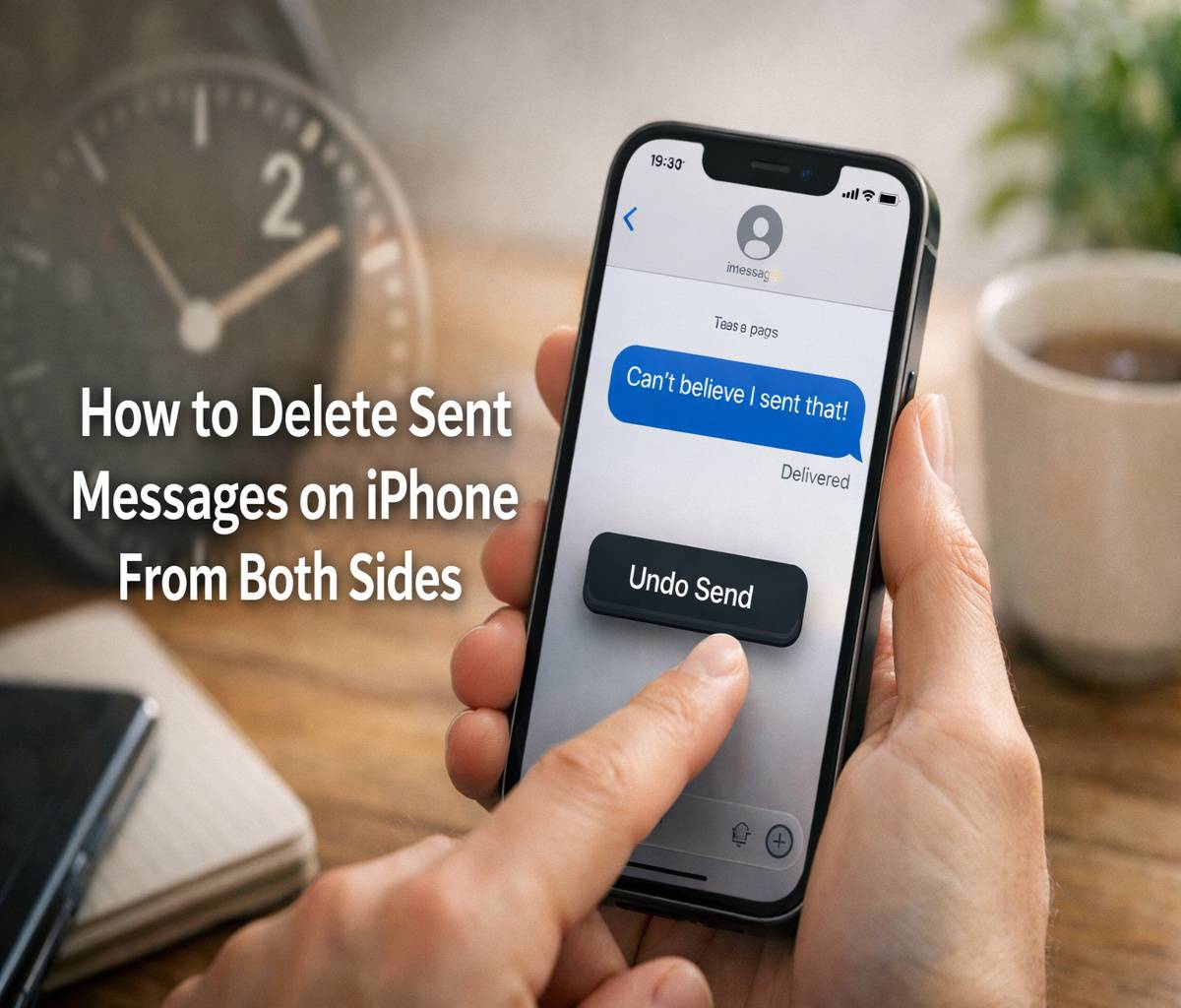
If you are searching for how to delete sent messages on iPhone from both sides, you are probably trying to fix something quickly. Maybe it was a typo, maybe it was sent to the wrong person, or maybe it was one of those messages that felt fine for about three seconds and then suddenly did not. That happens more often than people admit.
The short answer is that you can sometimes remove a sent message for both sides on an iPhone, but only in a limited Apple-supported way. If the message was sent as an iMessage, you can use Undo Send within a short time window. If it was a regular SMS text, or if too much time has passed, you generally cannot make it disappear from the recipient’s device.
That distinction matters because a lot of articles blur the line between deleting a message on your phone and unsending it from the conversation for everyone involved. They are not the same thing. If your goal is broader cleanup rather than retracting a sent text, our main guide on how to delete messages on iPhone covers deleting individual texts, full conversations, attachments, and Recently Deleted in more detail.
What “delete from both sides” really means on iPhone
When people say they want to delete a sent message from both sides, what they usually mean is this: they want the message gone from their own chat and gone from the other person’s chat too. On iPhone, that is only possible through Apple’s Undo Send feature for iMessage, and even then it works only under specific conditions.
In other words, there is no universal “remote delete” button for all texts. You are not broadly reaching into another person’s phone and removing any message whenever you want. Apple allows you to unsend a recently sent iMessage, but that is a narrower feature than many people expect.
Can you delete sent messages on iPhone from both sides?
Yes, but only if the message was sent as an iMessage and you act quickly enough. Apple allows you to unsend a recently sent iMessage for up to two minutes after sending it, and when that works, the message is removed from both conversation transcripts on supported devices.
There are a few limits, though. This feature does not work for standard SMS messages, and if the recipient is using an older version of iOS, iPadOS, or macOS, they might still see the message even after you unsend it.
How to unsend a message on iPhone
If your message qualifies, the steps are simple. The stressful part is usually not the process. It is the timing.
- Open the Messages app.
- Open the conversation that contains the message.
- Touch and hold the message bubble you want to remove.
- Tap Undo Send.
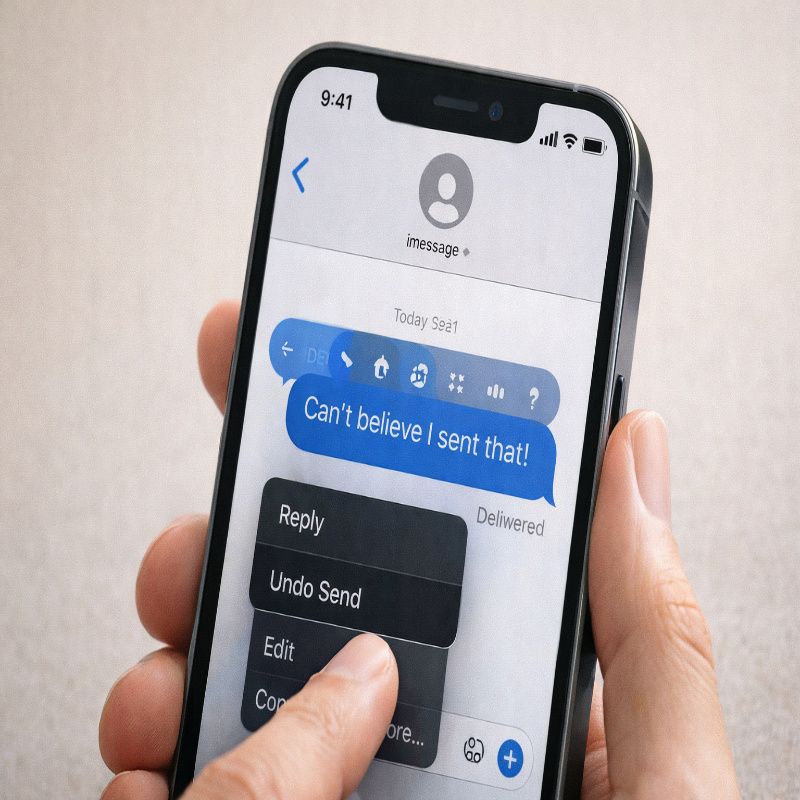
Once you do that, the message disappears from the conversation and a note appears showing that you unsent a message. Apple explains that this confirmation appears in both transcripts, yours and the recipient’s, so the message itself can be removed even though the action is still visible.
How long do you have to unsend a message?
You have up to two minutes after sending an iMessage to unsend it. After that, the Undo Send option is no longer available, which is frustrating, honestly, but at least the rule is clear.
If more than two minutes have passed, your next option is usually not unsending. At that point, you can still delete the message from your own device, but that will not remove it from the other person’s phone. If you need help with that part, our guide on how to delete messages on iPhone walks through the standard deletion methods.
Does this work for SMS text messages?
No, not in the same way. Undo Send is designed for iMessage conversations, not regular SMS or MMS text messages sent through your carrier.
That is one of the biggest sources of confusion. A message thread can look fairly similar in the Messages app, but blue-bubble iMessages and green-bubble SMS texts do not support the same features. So if you are trying to retract a green-bubble text, there is not really a true “delete from both sides” option built into the iPhone.
What happens on the recipient’s phone?
If both people are using supported Apple software and the message is unsent in time, the message is removed from the recipient’s device. Apple also notes that a notice appears in the conversation indicating that you unsent a message.
That means the content can disappear, but the recipient may still know that something was sent and then retracted. So, yes, the message can vanish, but not without leaving a small trace that an action happened. In some situations that is enough. In others, maybe not.
When unsending may not fully work
There are a few situations where people assume the feature will work perfectly and then get surprised:
- The message was sent more than two minutes ago.
- The message was sent as SMS instead of iMessage.
- The recipient is using an older Apple software version.
- The recipient saw the message before you unsent it.
That last point is worth pausing on. Even if Apple removes the message from the thread, it does not erase the fact that the recipient may already have read it, seen a notification preview, or reacted to it mentally before it disappeared. Technology helps, but only up to a point.
Delete vs unsend on iPhone
People use these words interchangeably, but they mean different things on an iPhone. This matters because choosing the wrong action can create false confidence.
Delete a message
Deleting removes the message from your own device or conversation view. Apple’s Messages settings also let you delete attachments, whole conversations, and permanently clear items from Recently Deleted, but that does not equal retracting a text from another person’s phone.
Unsend a message
Unsending is Apple’s built-in feature that attempts to remove a recently sent iMessage from both conversation transcripts. It is more powerful than standard deletion, but it only works within the two-minute window and only in supported iMessage situations.
If your goal is privacy after the fact, you may also want to clear the copy from your own phone completely. Our related guide on how to permanently delete text messages on iPhone explains how Recently Deleted works and why simply tapping delete is not always the last step.
Can you edit instead of unsend?
Sometimes editing is the better move. Apple lets you edit a recently sent iMessage up to five times within 15 minutes of sending it, which is useful for fixing names, dates, typos, or those oddly embarrassing autocorrect mistakes.
Editing makes more sense when the message is basically fine but needs a correction. Unsending is better when the message should not remain in the chat at all. The line between those two choices is simple enough in theory, though in real life people tend to decide based on panic level.
How to tell whether your text was sent as iMessage
If you are unsure whether Undo Send will work, look at the conversation. In most cases, iMessages appear as blue bubbles, while standard SMS messages appear as green bubbles. If the message went through as SMS, you will not get the same unsend option Apple provides for iMessage.
You may also run into this if your internet connection dropped and the iPhone sent the message as a carrier text instead. That can be annoying because the message may have looked routine at the time, and only later do you notice you lost the iMessage features that would have helped.
What to do if you missed the two-minute window
If the time window is gone, there is no official Apple feature that will remove that message from the recipient’s phone after the fact. At that point, your practical options are more limited.
- Delete the message from your own device so it is no longer visible there.
- Follow up with a correction if the issue was a typo or wrong detail.
- Ask the recipient to delete it if the situation is sensitive.
- Use the edit feature instead, if it is still available and the message qualifies.
That is not as satisfying as a true recall feature with no restrictions, obviously. But it is the realistic answer, and for a topic like this, realism is more helpful than false promises.
How to delete the message from your own iPhone after sending it
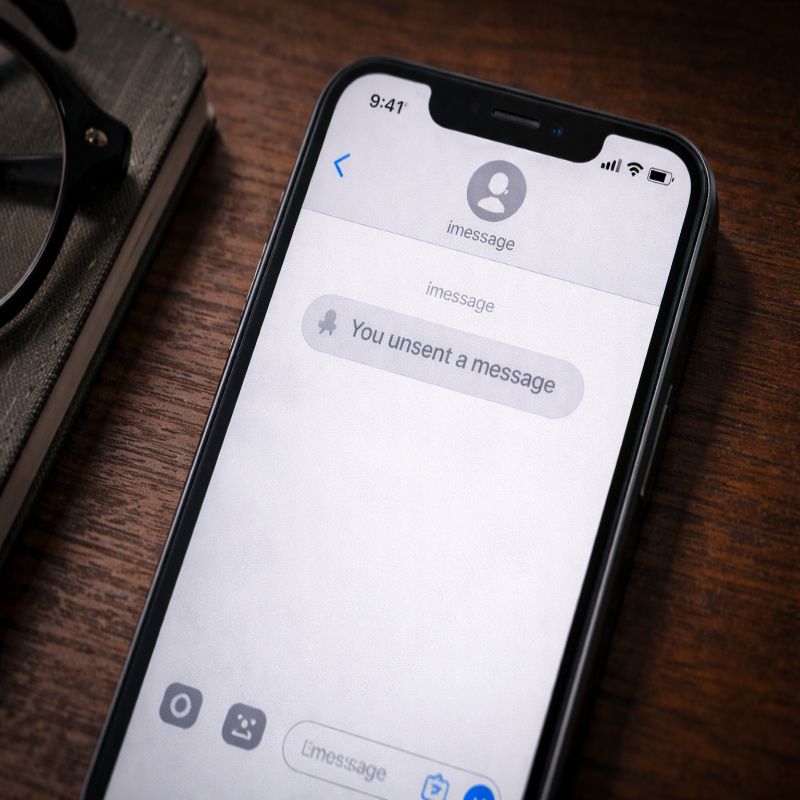
Even if you cannot remove the message from both sides, you can still delete it from your own chat. That can help with privacy, cleanup, or just peace of mind.
- Open Messages.
- Open the conversation.
- Touch and hold the message bubble.
- Tap More.
- Select the message if needed.
- Tap the trash icon, then confirm.
Apple also notes that deleted messages remain in the Recently Deleted folder for 30 days unless you remove them permanently first. So if you are trying to clear the message completely from your own device, you may want to review our article on how to permanently delete text messages on iPhone after this step.
Does unsending work on all Apple devices?
Apple says the feature works across supported versions of iOS, iPadOS, and macOS. If everyone in the conversation is using current compatible software, unsending should behave as expected. If someone is on an older version, the unsent message may still remain visible to them.
This is one of those details that sounds small until it matters. A lot of people assume all Apple devices work the same way automatically, and most of the time they do, but version compatibility can still trip things up.
Common misunderstandings about deleting sent messages
There are a few myths around this topic that are worth clearing up:
- Myth: You can delete any text from both phones whenever you want. Reality: Apple only allows unsending recently sent iMessages under specific conditions.
- Myth: Deleting a message from your chat removes it from the recipient’s chat. Reality: Standard deletion affects your device, not theirs.
- Myth: Undo Send works for all text messages. Reality: It is an iMessage feature, not a general SMS feature.
- Myth: Unsending means the other person never knew a message existed. Reality: A notice can still appear showing that you unsent something.
These misunderstandings are common because the Messages app brings several tools into one place. From the user’s point of view, it all feels like “texting,” but under the hood the rules are different depending on how the message was sent.
The simplest way to think about it
If the message was an iMessage and you are within two minutes, use Undo Send. If it was SMS, or too much time has passed, you cannot reliably delete the sent message on iPhone from both sides using Apple’s built-in tools.
That is really the core answer. Everything else is just understanding the exceptions, the limits, and what to do next if you are too late.
Final thoughts on how to delete sent messages on iPhone from both sides
Learning how to delete sent messages on iPhone from both sides is mostly about understanding the limits of iMessage rather than finding a hidden trick. If the message qualifies, Undo Send is fast and useful. If it does not, your only real option is usually to delete it from your own device and manage the situation another way.
That may sound a little less magical than some search results suggest, but it is the honest answer. And in this case, honesty is probably more useful than false hope, especially when the clock is already ticking.