
 Xbox Cloud Gaming Equirements: Internet, Devices, Controllers
  How to Delete Sent Messages on iPhone From Both Sides
  Real-Time Tracking in the Distribution of Goods
  Portable Monitor For Laptop Guide
  Optimizing Sales Prospecting with Modern Software Tools
  What Is One Way That Technology Can Improve The Distribution Of Goods?
  Xbox Cloud gaming: A Practical Guide For Real Life
  Game Pass vs PlayStation Plus: which is actually worth it?
  Macfox X1S installation guide: assembly, setup, and first ride checks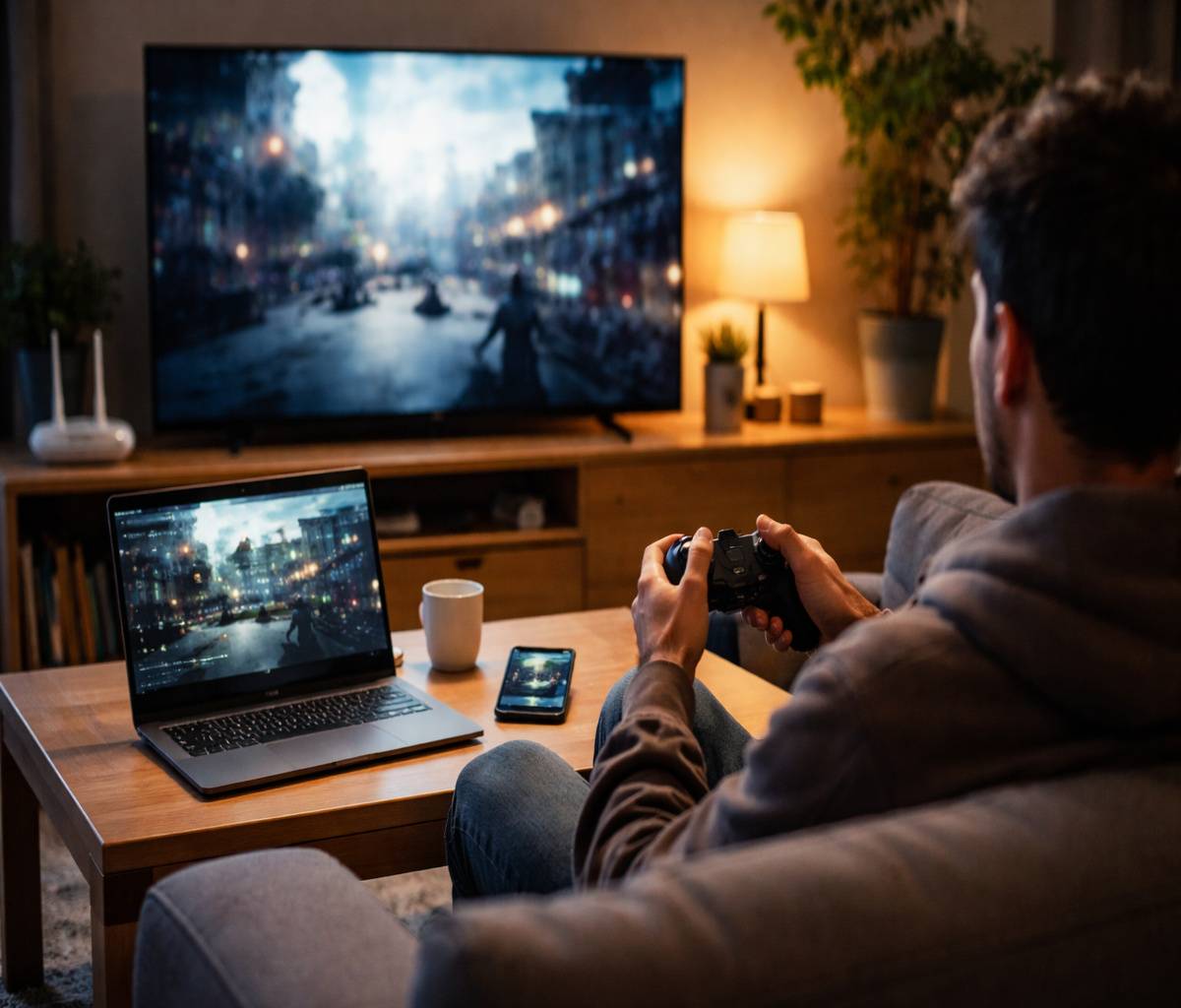
Xbox cloud gaming sounds like a small miracle the first time you hear it: pick a game, press play, and you’re in—no giant download, no waiting, no “storage full” message at the worst possible moment. And yes, that’s basically the promise. But it’s still streaming, which means real-life things (Wi‑Fi hiccups, busy evenings on the home network, a controller that won’t pair when you’re already impatient) matter more than most people expect.
In this guide, I’ll walk you through how xbox cloud gaming works, what you actually need, how to set it up on common devices, and how to fix the issues people tend to run into.
I’ll also be honest about where it shines and where it can feel… a little fragile. Not because the tech is bad—because the internet is unpredictable, and gaming is less forgiving than video streaming.
What xbox cloud gaming is (and what it isn’t)
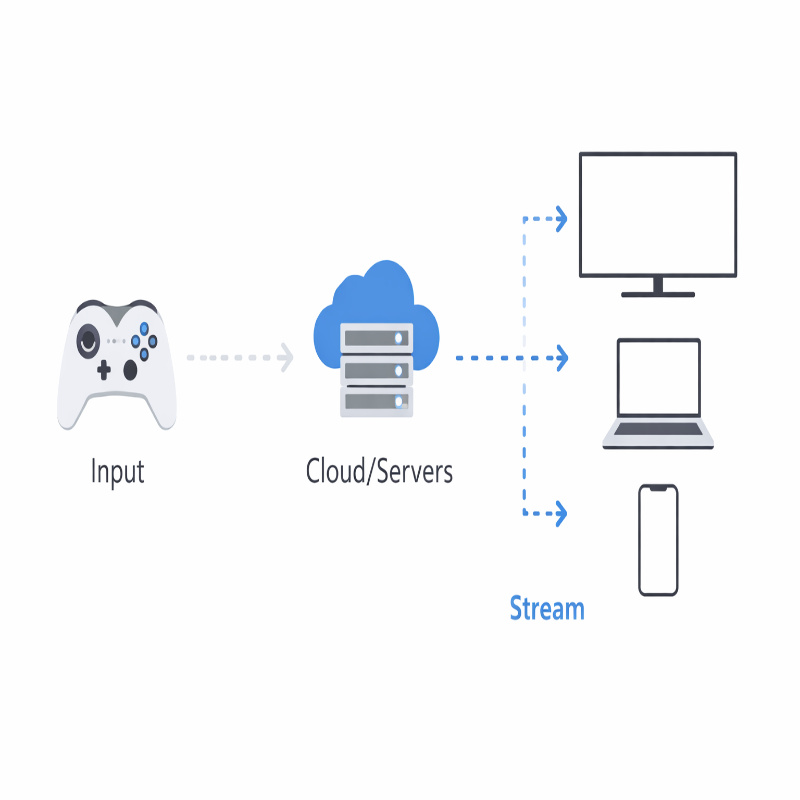
At its core, Xbox Cloud Gaming lets you stream games from Microsoft’s servers to a screen you already own, using supported apps or a web browser. The game is running “somewhere else,” and you’re receiving a live video stream while your inputs are sent back in real time. It’s closer to Netflix than it is to installing a game—except you’re controlling it, so delays and stability matter a lot more.
What it isn’t: it’s not the same as downloading a game locally to your console or PC, and it’s not “offline gaming.” If your connection drops, the session can stutter or end.
That tradeoff is the whole deal: less hardware and fewer downloads, in exchange for depending on a stable network connection.
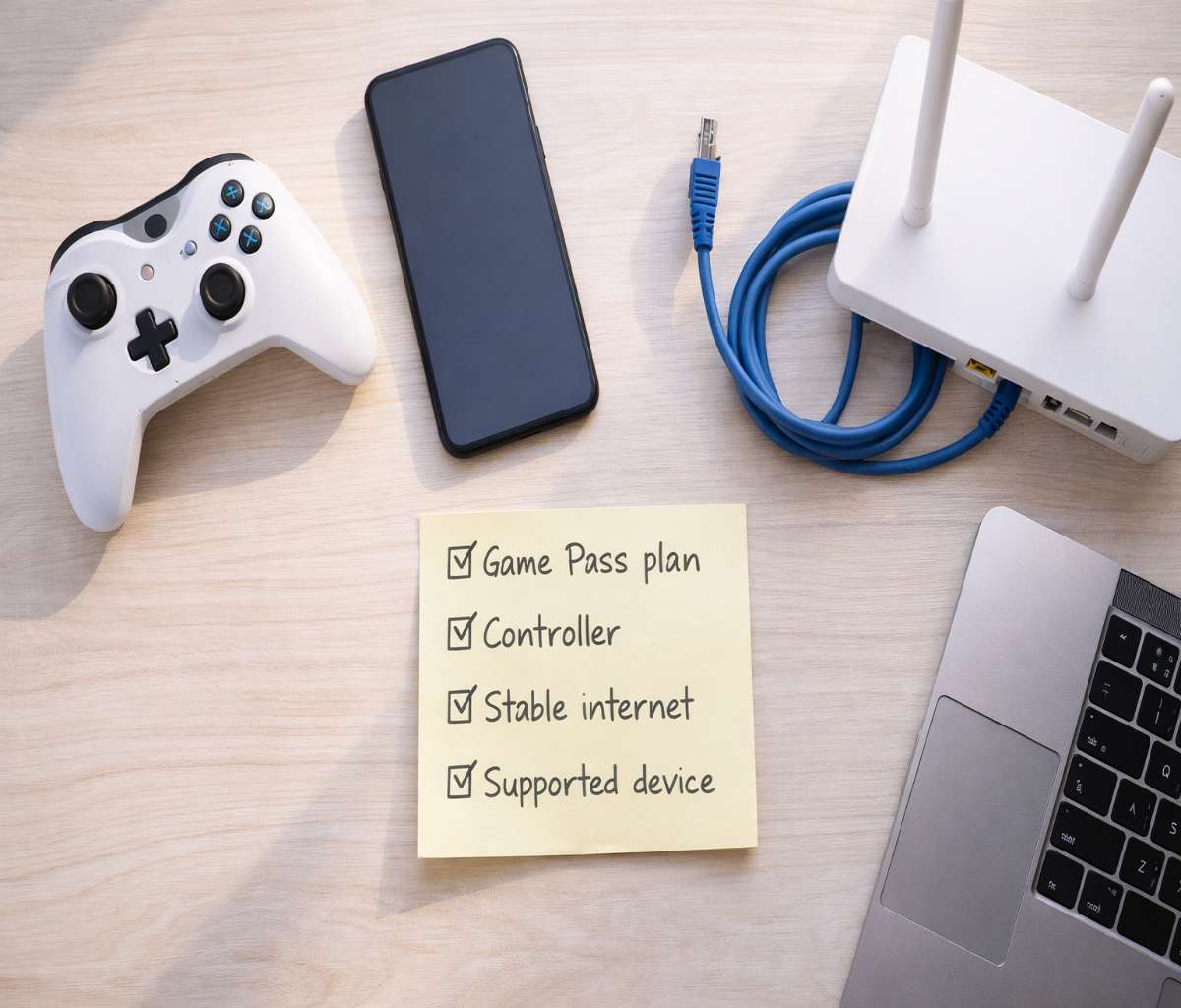
Xbox Cloud Gaming requirements (what you need)
Let’s keep this practical. You don’t need a complex setup, but you do need the basics to be in place—especially your subscription and your connection.
1) A compatible Xbox Game Pass plan
Xbox positions cloud gaming as included with Xbox Game Pass plans (with current plan naming including Essential, Premium, and Ultimate).
In other words, for most people, cloud gaming is a feature you get through Game Pass rather than a separate standalone product.
If you’re deciding between plans, it helps to think in “how do I actually play?” terms.
If you mostly want to stream across devices and care about the best possible experience and extras, Ultimate is usually the plan Xbox highlights for the most complete package.
If you want something more budget-friendly and you’re comfortable with a more curated experience, the other tiers can still make sense.
One more small but important reality check: game availability can change over time, and it can vary by region and platform.
So whenever you’re not sure, it’s worth checking the cloud library directly on Xbox’s play site before you commit to a plan for a specific title.
2) A supported device (you probably already have one)
Xbox cloud gaming is designed to run on a wide mix of devices through apps and browsers. Common options include Xbox consoles, Windows PCs, phones and tablets (Android and iPhone/iPad), Mac, Chromebooks, and certain smart TVs or streaming devices. The point is flexibility—play in the living room, then continue on a laptop, then pick up again on your phone while you’re waiting for something.
If you want a quick “least friction” route, a modern Windows laptop/desktop with a browser tends to be simple. On iPhone and iPad, the browser route is typically the main path.
On TVs, it can be wonderfully convenient when it works… and slightly annoying when your Bluetooth controller decides to act up.
If you’re planning your setup, you might like this deeper companion guide: Xbox Cloud Gaming requirements: internet, devices, controllers.
3) A good internet connection (speed helps, stability matters more)
Xbox’s own guidance is straightforward: cloud gaming needs a high-speed internet connection, and best performance is tied to higher speeds and better Wi‑Fi.
Xbox also calls out target speeds like around 10 Mbps for mobile and around 20 Mbps for consoles, PCs, and tablets—plus using 5 GHz Wi‑Fi or mobile data where appropriate.
Still, I think the more useful way to say it is this: a “fast” connection that regularly spikes or drops can feel worse than a slightly slower connection that stays steady.
Cloud gaming is interactive. It’s not going to patiently buffer for 30 seconds and then pretend nothing happened.
If you’re playing on Wi‑Fi and it’s inconsistent, try moving closer to the router, switching to 5 GHz, or using Ethernet if you’re on a console/PC.
It’s not glamorous advice, but it’s usually the advice that works.
4) A controller (most of the time)
Most cloud games feel best with a controller, and many require one. Xbox notes broad controller support across devices, including Xbox controllers and other common options, and also mentions that some games support touch controls or mouse and keyboard.
In practice, this means you should plan on having a controller available. Touch controls can be surprisingly okay for certain games, but it’s not the universal, “play everything comfortably” solution some people hope it is.
How to start playing on xbox.com (browser method)
If you want the simplest starting point, use the web player. Xbox explicitly points people to the cloud library through its play site, and it’s often the most consistent way to get going across different devices.
A quick setup checklist
- Open a supported browser and go to xbox.com/play.
- Sign in with the Microsoft account tied to your Game Pass subscription.
- Pair your controller (Bluetooth or USB, depending on device).
- Pick a cloud-playable game and press Play.
- If you’re on iPhone/iPad, consider adding the site to your Home Screen for quicker access later.
Xbox also calls out supported browsers for play on xbox.com, such as Microsoft Edge, Google Chrome, and Safari, depending on your device.
If a game won’t launch, switching browsers is one of those oddly effective “turn it off and on again” moves—annoying, but often worth trying.
If you’re specifically on Apple devices and want the smoother version of this setup, you may prefer the dedicated walkthrough here: How to use Xbox Cloud Gaming on iPhone and iPad.
How to play through apps (console, TV, and other devices)
Apps can feel more “native,” and on some devices they’re the main experience.
On Xbox consoles, cloud gaming is integrated into the broader Xbox ecosystem, and you’ll often see cloud options inside your library and Game Pass areas.
On certain smart TVs and streaming devices, the Xbox app can let you stream directly without a console.
When that setup is running well, it’s honestly one of the best demos of cloud gaming—because it removes the “extra box under the TV” entirely.
But it also means your TV’s Wi‑Fi and Bluetooth performance suddenly matters more than you’re used to thinking about.
A small note that people sometimes miss: keep device software updated.
Cloud gaming tends to improve through incremental updates, and outdated firmware can lead to weird compatibility issues that look like “Xbox is broken” when it’s really just “your device is behind.”
Choosing what to play: cloud library basics
Not every Game Pass title is necessarily cloud-playable at all times, and availability can vary.
Xbox recommends checking the cloud library directly on the play site to see what’s currently available from the cloud in your region and on your platform.
Here’s the mental model I use:
Cloud gaming is best when you want to sample, jump in quickly, or keep momentum across screens.
If you already know you’ll spend 60 hours on one game and you have a console/PC that can run it locally, downloading can still feel better—less latency, sharper image, fewer “streaming moments.”
It’s okay to mix both approaches.
“Stream your own game”: the underrated feature
Xbox has been expanding the idea of streaming select games you already own, not just what’s inside the Game Pass catalog.
This is one of those features that can quietly change how the whole service feels, because it reduces the “am I allowed to play this in the cloud?” guessing game—at least for supported owned titles.
The catch (and there’s usually a catch) is that the list of supported owned titles is a living list.
So if this is your main motivation, check the current availability on the official play experience and treat it as a “nice bonus” rather than an iron-clad promise for every game you buy.
Where xbox cloud gaming shines (and where it can disappoint)
Cloud gaming is at its best when it removes friction.
You can go from “I have 20 minutes” to “I’m playing” almost instantly.
If you’ve ever stared at a 90 GB download and sighed, you know why that matters.
It’s also great for households where the main TV is shared.
Someone else wants the console? Fine—play on a laptop.
Your console storage is full? Stream it first, decide later.
You’re traveling with a light device? Cloud gaming makes that feel less like a compromise.
But. And this is the honest part.
If your connection is inconsistent, you’ll feel it.
Some games tolerate a little softness or compression better than others, and fast reaction-based games can be less forgiving if you’re sensitive to latency.
In those moments, cloud gaming can feel incredible one day and slightly frustrating the next, with no change on your end that you can point to.
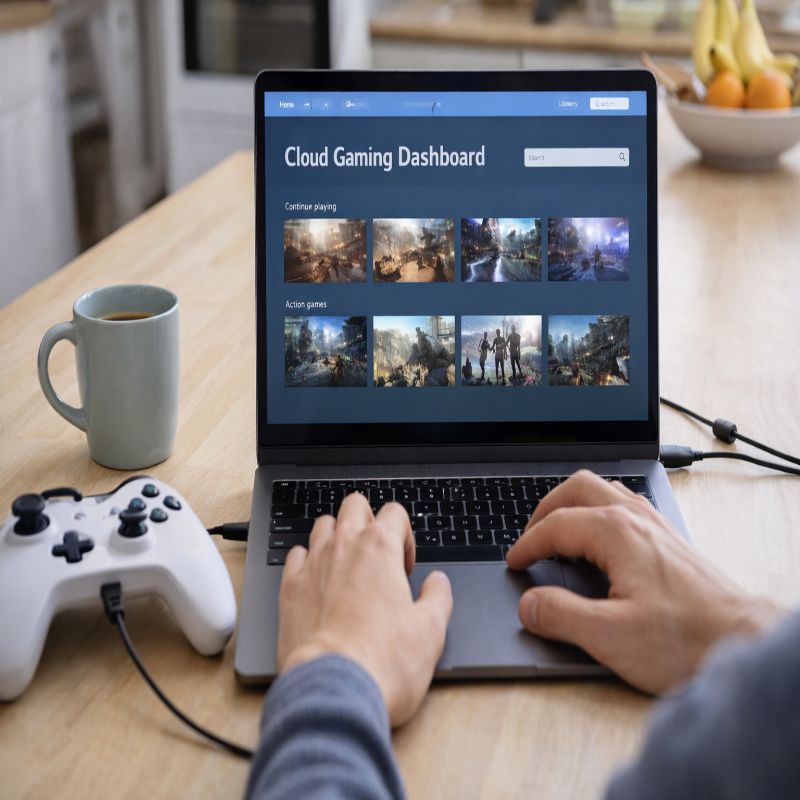
Troubleshooting: common problems and fixes
This section is intentionally a bit “real world.”
When people say cloud gaming doesn’t work, it’s often not one huge problem.
It’s a pile-up of small ones.
Problem: Input lag (your controls feel delayed)
Start with the basics that tend to make the biggest difference:
Use Ethernet on console/PC if possible, or switch to 5 GHz Wi‑Fi, and reduce network congestion (downloads, streaming video, big updates) while you play.
Xbox’s own guidance leans toward faster connections and 5 GHz Wi‑Fi for better performance, and that lines up with what most people experience.
If you want a more methodical approach—what to test first, what to change second, and what’s probably not worth obsessing over—this is the detailed guide:
Fix input lag on Xbox Cloud Gaming (real causes).
Problem: The image looks blurry or “blocky”
This is usually compression or bandwidth fluctuation. Try moving to a more stable connection (again: Ethernet if you can), or get closer to the router, or switch to a less congested Wi‑Fi band. If you’re on mobile data, your signal strength and local congestion can change minute to minute, which makes quality inconsistent even if your speed test looked fine five minutes ago.
Problem: Controller won’t connect or keeps disconnecting
Bluetooth issues can be surprisingly mundane:
low battery, too much distance, too many paired devices, or the controller being paired to a different device than the one you’re currently using.
If you can, try USB (on PC) as a quick sanity check.
If USB works, you’ve learned something: it’s likely Bluetooth, not the cloud service.
Problem: The game won’t launch in the browser
First, make sure you’re using a supported browser for xbox.com play.
Xbox explicitly references Microsoft Edge, Google Chrome, and Safari as supported options depending on device, so try one of those if you’re using something else.
Then try a private/incognito window (extensions can interfere), and log in again.
Problem: Audio is out of sync or crackly
This can be a network stability issue or a device audio routing problem (especially with Bluetooth headphones).
Try switching audio output (wired headset vs Bluetooth), or disconnecting and reconnecting your headset.
If you’re on a congested network, reducing background traffic can also help stabilize audio.
Practical tips that make cloud gaming feel “normal”
This is the part that feels almost too simple, but it’s where people end up landing after the initial excitement.
A few small habits can make xbox cloud gaming feel less like a tech demo and more like an everyday way to play.
- Pick the right screen for the moment: phone for quick sessions, laptop/TV when you want immersion.
- Use a controller you trust: if you’re always fighting Bluetooth pairing, it’s going to sour the experience.
- Give your network a fighting chance: 5 GHz Wi‑Fi or Ethernet; avoid big downloads while playing.
- Start with slower-paced games: it helps you judge your connection without blaming yourself for every missed input.
And yes, maybe this is a mild contradiction: I love how “instant” cloud gaming can feel, but I also think it rewards people who take five minutes to set up a stable connection.
The magic is real, but it’s not completely free.
FAQ: quick answers people actually look for
Do I need a console for xbox cloud gaming?
Not necessarily. Xbox supports cloud gaming across multiple device types, including phones, tablets, PCs, and certain TV/streaming device setups, often via xbox.com/play or the Xbox app where available.
Is xbox cloud gaming “free”?
Typically, cloud gaming access is included via Xbox Game Pass plans. Some experiences and free-to-play options can exist, but in general you should assume you’ll need an eligible Game Pass subscription for broad access to cloud-playable titles.
What internet speed do I need?
Xbox’s own guidance points to better performance at around 10 Mbps on mobile and around 20 Mbps on consoles/PCs/tablets, plus 5 GHz Wi‑Fi where possible.
In reality, consistency and low interruptions matter just as much as raw download speed.
Conclusion: should you use xbox cloud gaming?
If you have a stable connection and you like the idea of playing across screens without downloads, xbox cloud gaming is genuinely worth trying. It can feel surprisingly close to “normal gaming,” especially when you’re on 5 GHz Wi‑Fi or Ethernet and you’re using a controller that behaves.
If your internet is unpredictable, I still think it can be worth experimenting—just set expectations.
Start with a few games that don’t demand perfect reaction time, test on different devices, and see how it behaves at the times you actually play (not just at noon on a quiet weekday).
When it clicks, it’s hard not to like it.