
 Xbox Cloud Gaming Equirements: Internet, Devices, Controllers
  How to Delete Sent Messages on iPhone From Both Sides
  Real-Time Tracking in the Distribution of Goods
  Portable Monitor For Laptop Guide
  Optimizing Sales Prospecting with Modern Software Tools
  What Is One Way That Technology Can Improve The Distribution Of Goods?
  Xbox Cloud gaming: A Practical Guide For Real Life
  Game Pass vs PlayStation Plus: which is actually worth it?
  Macfox X1S installation guide: assembly, setup, and first ride checks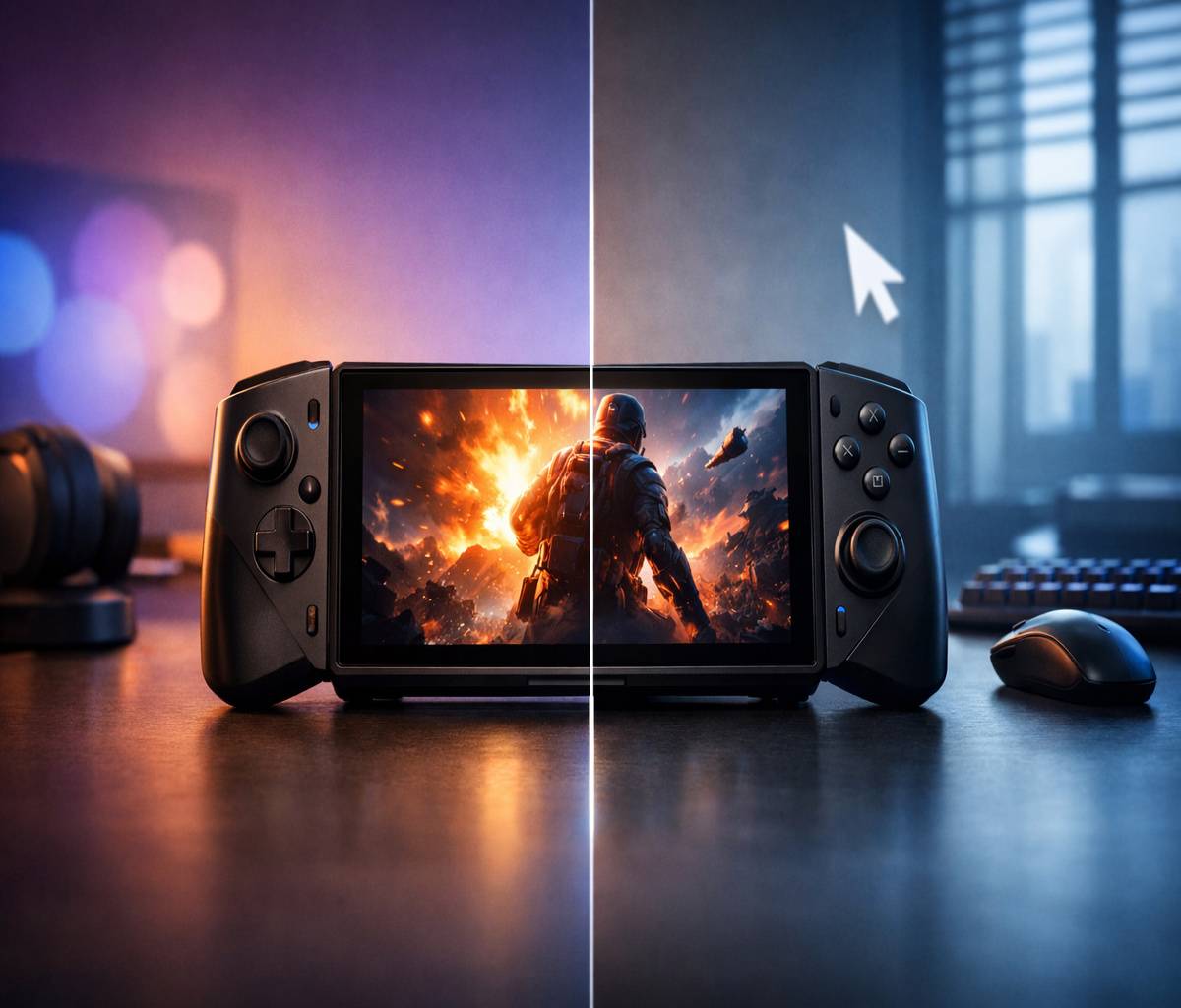
If you’re deciding between SteamOS and Windows 11 on the Legion Go 2, you’re not really choosing an operating system. You’re choosing a lifestyle. One path feels more like a console, the other feels more like a small laptop that happens to have controllers attached. And yes, that’s a slight oversimplification, but it’s also the truth most people discover a week after buying.
This article is Cluster 1 in our Legion Go 2 content hub, so it’s intentionally focused. If you want the broader “is this handheld even for me?” overview, start with our pillar guide: lenovo legion go 2. Then come back here when you’re ready to make the OS call.
Legion Go 2 SteamOS vs Windows 11: the quick answer
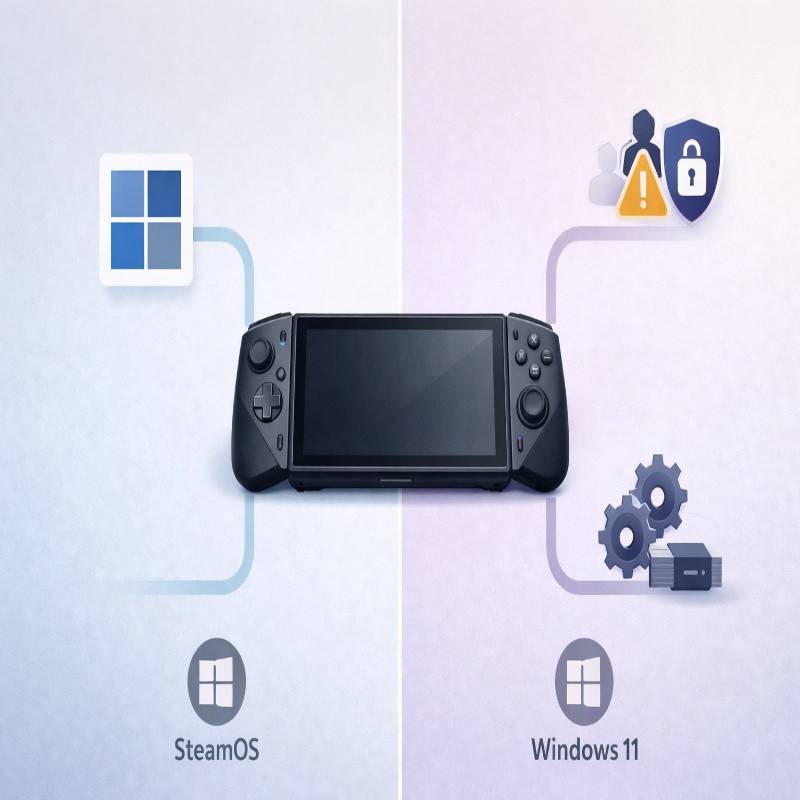
Choose SteamOS if you want the most console-like experience, fewer background processes, and a setup that’s designed around a controller-first UI. Windows Central also expects SteamOS to run more efficiently, which usually translates into smoother day-to-day use and potentially better battery life on the same hardware.
Choose Windows 11 if you care about maximum game compatibility, anti-cheat-heavy multiplayer titles, Game Pass on PC, or you want to use the Legion Go 2 as a tiny desktop with a browser, apps, and peripherals. Windows Central notes Windows has a lower starting price and broader compatibility, but also more “bloat” and a more PC-like interface.
And if you’re thinking, “I want SteamOS simplicity but I can’t risk one weird compatibility issue,” you’re not alone. That’s the common tension point with handheld PCs right now.
What’s the same on both versions (so you can stop worrying)
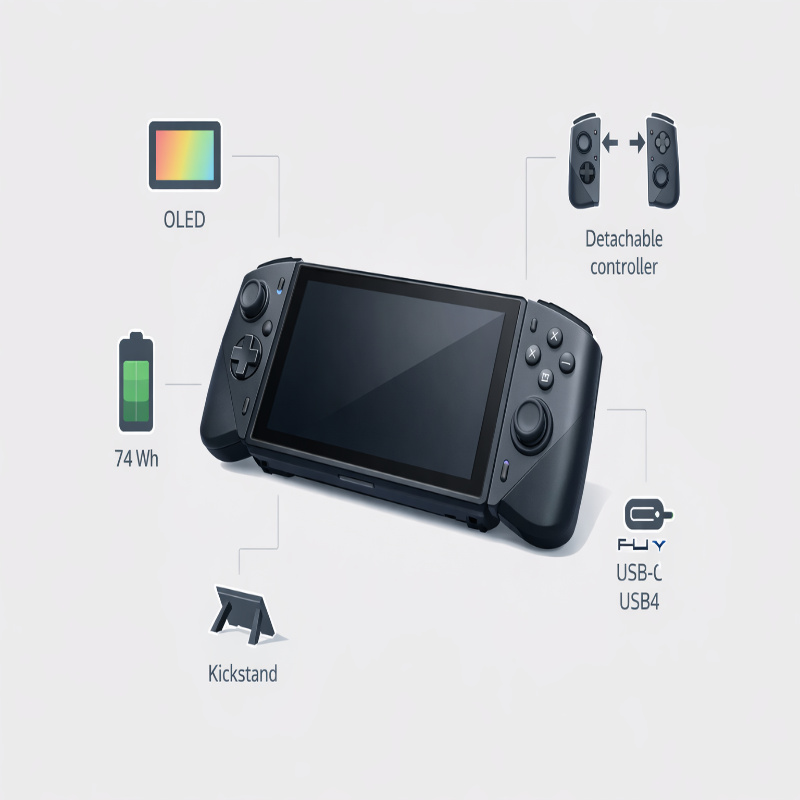
Hardware-wise, the SteamOS and Windows versions are largely the same device. Windows Central lists the same 8.8-inch OLED (1920 × 1200), 144Hz refresh rate, VRR support, a 74Wh battery, detachable controllers, kickstand, and the same general layout across both.
So, if you’re hoping one OS version is secretly “the lighter one” or “the better screen one,” that’s probably not where the difference lives. The differences are mostly software, services, and a few hardware features that behave differently depending on OS support.
The one exception: fingerprint reader support
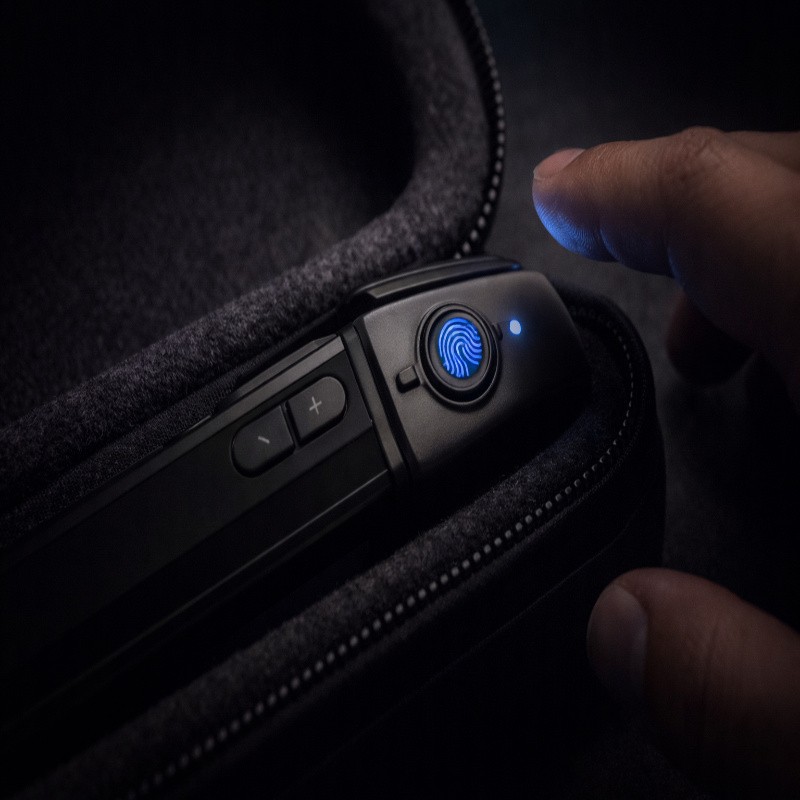
Windows Central specifically calls out that SteamOS doesn’t support the fingerprint reader, while Windows does. If you’re the kind of person who loves quick, frictionless logins, that’s not a tiny detail. It’s one of those things you appreciate every single day.
Also, just as a real-world heads-up: Engadget notes the fingerprint reader/power button on the Windows model can be sensitive enough that the device may wake back up when you think you put it to sleep, which is not ideal if it’s inside a case. That’s more of a “learn the quirk” issue than a deal-breaker, but it’s worth knowing.
Pricing and release timing (and why it’s a little weird)
Here’s the part that surprises most people: the SteamOS version is listed with a higher starting price than the Windows version. Windows Central lists $1,199 as the SteamOS starting price and $1,049.99 as the Windows starting price.
Timing matters too. Windows Central states the Legion Go 2 launched as a Windows 11 handheld in October 2025, while the SteamOS version is slated for June 2026. If you need a handheld now, waiting might be annoying… but also, waiting could be smart if the OS experience is your biggest concern.
If you’re trying to balance cost against comfort and “daily friction,” it may help to skim our ergonomics-focused piece in parallel: Lenovo legion go 2 ergonomics: comfort matters. Sometimes the decision is less about OS and more about whether you’ll actually enjoy holding the thing.
Performance: same chips, different feel
On paper, both versions offer AMD Ryzen Z2-series options (including Z2 Extreme), with similar RAM and SSD capacity options. Windows Central’s take is that SteamOS is more optimized for handheld use and has less background “bloat,” so it’s likely to run more efficiently even on the same silicon.
That “efficient feel” can show up as quicker navigation, fewer random slowdowns, and less overhead when you’re launching games or switching settings. It’s not always a dramatic FPS jump. Sometimes it’s just that the device feels calmer, like it’s working with you rather than constantly doing something in the background.
A practical way to think about fps and settings
If you mainly play demanding AAA games, you’ll still be tuning settings regardless of OS. Engadget’s Windows testing shows that resolution and performance targets matter a lot; running heavier games at the Legion Go 2’s native 1920 × 1200 can push you into lower settings faster than you’d expect if you’re coming from a desktop GPU mindset.
This is where upscaling and frame caps become your best friends, not “compromises.” And if you want a more prescriptive, scenario-based approach (commute mode, hotel mode, plugged-in mode), our guide Lenovo legion go 2 battery life: realistic settings pairs nicely with either OS choice.
Battery life: why SteamOS probably wins (but don’t expect miracles)
Both versions have the same 74Wh battery, according to Windows Central. The expectation is that SteamOS lasts longer because it’s more efficient and better optimized for handheld gaming.
That said, “better battery life” in handheld PCs is often incremental, not transformative—especially when you’re driving a big OLED display. Engadget’s Windows battery test in a demanding game lasted almost three hours at max brightness in a specific scenario, which is decent for this class, but it also reinforces the general truth: if you want truly long sessions, you plan around charging.
A detail I don’t love, but I think matters: if you hate managing cables, SteamOS won’t magically turn this into an all-day device. It’ll likely help. It won’t rewrite physics.
Game compatibility: where Windows still has the easiest story
This is the biggest reason Windows remains the “safe” choice. Windows Central points out that most PC games are designed for Windows, while SteamOS relies on Proton, and not every game works perfectly (or at all) under Proton without tinkering.
If your library is basically “Steam single-player games and indies,” SteamOS is usually a great fit. But if you bounce between Steam and other ecosystems, you should pay attention to Windows Central’s warning that SteamOS can take more work to access non-Steam services.
Anti-cheat and competitive multiplayer
Windows Central is blunt about it: many competitive multiplayer games rely on kernel-level anti-cheat drivers that may not be supported on SteamOS, and workarounds can carry risk. If you live in that world—ranked play, always-online shooters, anything that bans aggressively—Windows is the more straightforward choice.
If you’re mostly single-player and you care more about a smooth handheld UI than absolute compatibility, then SteamOS starts looking very attractive. Slightly more limited, perhaps. But calmer.
Interface and everyday usability: console vibe vs PC vibe
SteamOS is designed to feel like a handheld console: big UI elements, controller-first navigation, and a gaming-centered flow. Windows Central describes it as having far less bloat than Windows 11 and a more console-like interface.
Windows 11, by contrast, is exactly what it sounds like: it feels like a desktop OS. Windows Central calls it clunkier and less efficient on handhelds, and also notes it can feel daunting if you want something simple.
Still, Windows has its own kind of convenience: you can install whatever you want the “normal PC way.” No compatibility layers. No “will this launcher behave?” questions. Sometimes that’s worth the annoyance of tiny touch targets and extra background services.
Updates and maintenance (the quiet difference)
Windows Central mentions that SteamOS updates can feel simpler because they live inside a gaming-focused settings flow, while Windows requires bouncing between Windows settings, game launchers, and vendor utilities.
If you enjoy tinkering, this is fine—maybe even fun. If you don’t, Windows maintenance can feel like chores sneaking into your leisure time.
Controls, ports, and “utility” features
Windows Central lists the same core ports on both versions: two USB4 Type‑C ports with DisplayPort 1.4 and Power Delivery 3.0 support, plus microSD and audio. They also note you’ll want a 65W dock (or higher) if you plan to dock reliably.
The SteamOS version also uses Steam Deck-style button icons, according to Windows Central, which is a small aesthetic touch but also a subtle signal: Lenovo is leaning into the “Steam console” identity for that model.
FPS mode: useful… with an asterisk
The Legion Go 2’s FPS mode is one of its signature “utility handheld” tricks. Engadget describes detaching the right controller, flipping a switch into FPS mode, and using the included base to create a vertical mouse-like controller with extra mouse buttons and a scroll wheel.
Windows Central raises a fair question about how well FPS mode works in SteamOS outside of games and Desktop Mode, and they frame Windows as the safer bet for getting the full “navigate everything like a PC” benefit.
My personal take: if you know you’ll use the device docked or on a desk, Windows makes the whole FPS-mode-and-desktop idea feel less like an experiment. If you mainly play handheld and want a console-like UI, FPS mode becomes a “nice to have,” not a pillar feature.
Which one should you buy? A simple decision guide
If you’re still torn, try answering these honestly (not aspirationally):
Choose SteamOS if…
- You want a console-like interface and less bloat.
- Your library is mostly Steam games.
- You’re willing to do some extra setup for non-Steam services if needed.
- You care about efficiency and likely battery gains, even if they’re modest.
Choose Windows 11 if…
- You play games with anti-cheat systems and want the safest compatibility path.
- You use multiple launchers, Game Pass, mods, or niche PC apps.
- You want fingerprint reader login support.
- You plan to dock it and treat it like a tiny PC fairly often.
And if you need a gut-check: Windows Central’s overall conclusion is “tradeoffs,” not a single winner, because both are good depending on use case. That’s not a hedge. That’s just the reality of PC handhelds in 2026.
Conclusion: your OS choice should match your habits
The Legion Go 2 is versatile enough that either OS can make sense. But the “best” option depends on what you do most often: if you want a handheld that feels like a gaming system, SteamOS is likely the more pleasant everyday experience; if you want maximum compatibility and fewer unknowns, Windows 11 is still the pragmatic pick.
If you’re still unsure, go back to the broader overview in our lenovo legion go 2 guide and re-read the parts about how you’ll actually use it—travel, bed, desk, docked. That’s usually where the answer reveals itself.