
 Xbox Cloud Gaming Equirements: Internet, Devices, Controllers
  How to Delete Sent Messages on iPhone From Both Sides
  Real-Time Tracking in the Distribution of Goods
  Portable Monitor For Laptop Guide
  Optimizing Sales Prospecting with Modern Software Tools
  What Is One Way That Technology Can Improve The Distribution Of Goods?
  Xbox Cloud gaming: A Practical Guide For Real Life
  Game Pass vs PlayStation Plus: which is actually worth it?
  Macfox X1S installation guide: assembly, setup, and first ride checks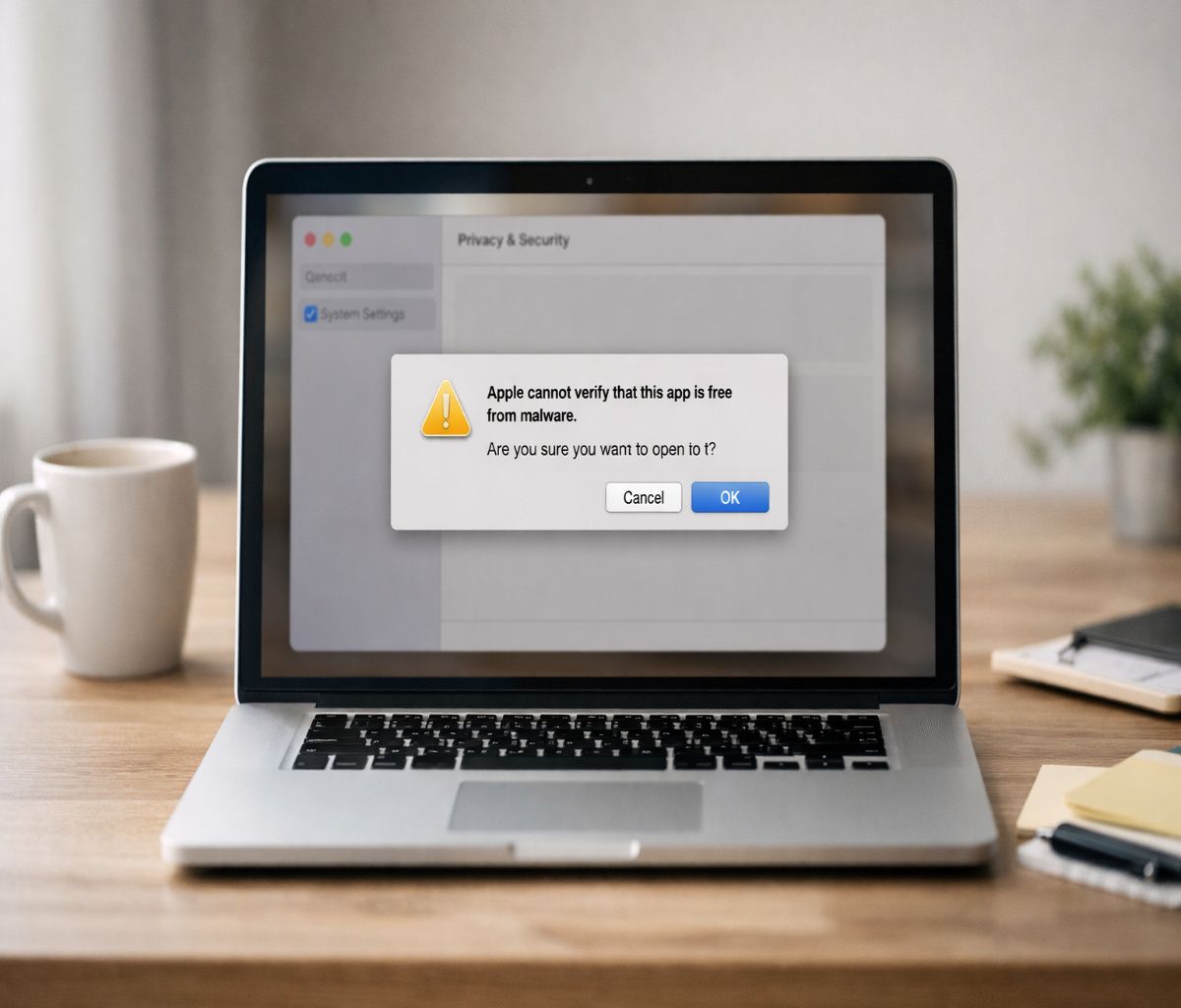
You did the “right” thing. You went to System Settings, looked for Privacy & Security, and hunted for the Open Anyway button.
And… nothing. No button. No helpful banner. Just that same “Apple could not verify is free of malware” message staring back at you like you missed a step.
I think this is one of the most irritating Gatekeeper moments on Mac, because the fix is usually simple—once you know what macOS expects you to do first.
Apple’s own guidance confirms there’s a very specific order: you attempt to open the app, then macOS reveals the option to approve it in Privacy & Security.
Here’s the parent guide (the one this article supports) if you want the full context: Apple could not verify is free of malware.
First, make sure you’re not skipping the step macOS requires
This sounds obvious, but it trips people up constantly: the Open Anyway option often doesn’t appear until after you’ve tried to open the app at least once.
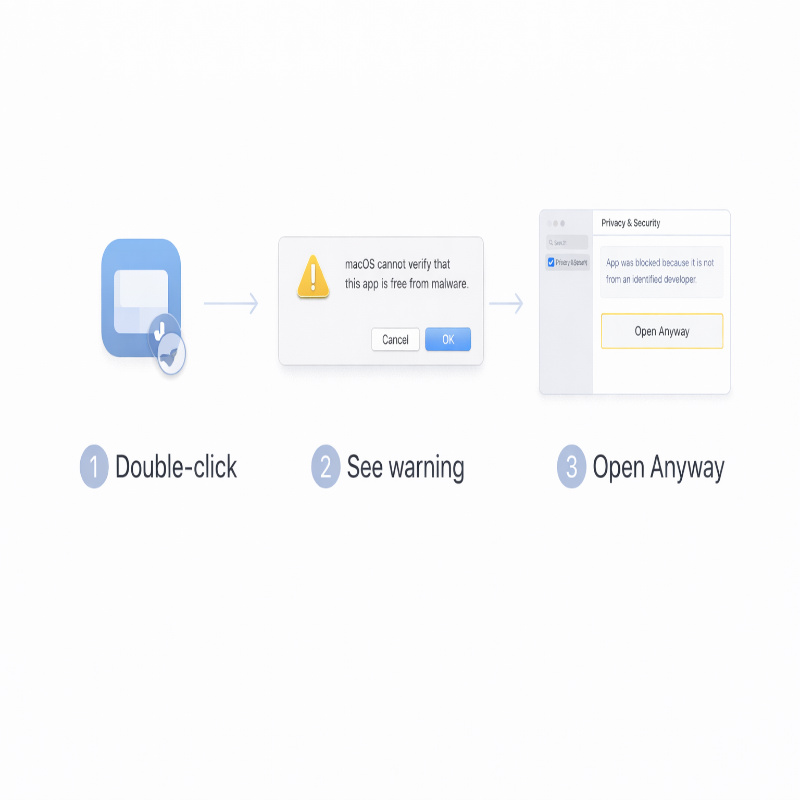
Apple describes the process this way: try opening the app, then go to System Settings → Privacy & Security and click Open Anyway, then confirm Open when the warning prompt returns.
The idea is that macOS is saving an exception for a specific app you explicitly attempted to run, not just letting you browse a list and approve things at random.
- Find the app you’re trying to open and try launching it (double-click).
- When the warning appears and macOS blocks it, don’t keep clicking around—just close the prompt.
- Open System Settings → Privacy & Security.
- Scroll to the Security area and look for the blocked app message.
- If you see Open Anyway, click it and confirm by clicking Open on the next prompt (only if you trust the source).
If that works, you’re done. Apple notes that once you approve it this way, the app is saved as an exception and you can open it later like a normal app.
It feels almost too easy after all the frustration, which is probably why people assume it can’t be the answer. But often, it is.
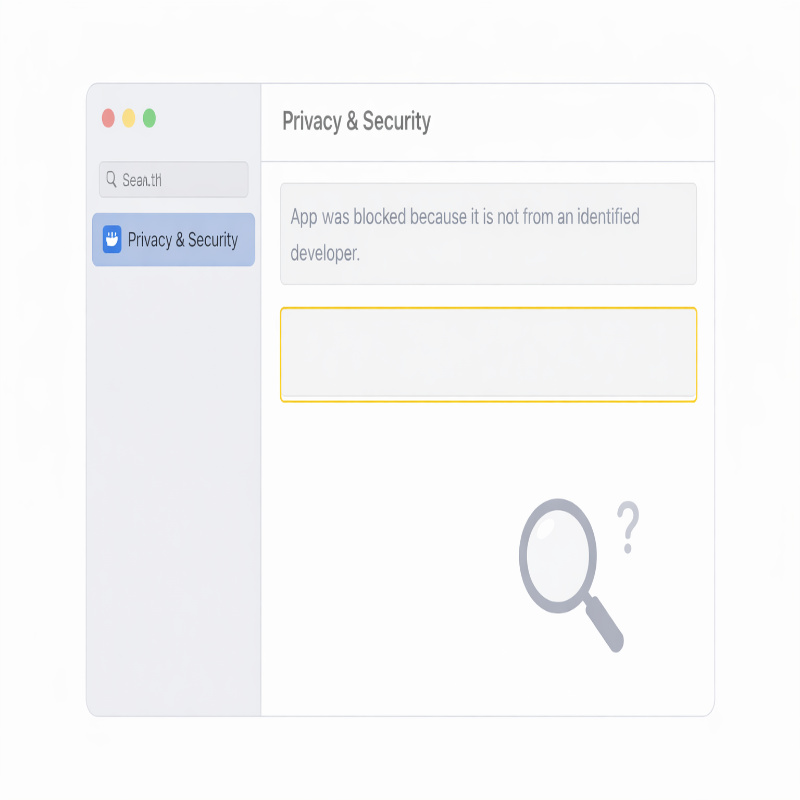
Where the “Open Anyway” button usually lives
In modern macOS, you’re looking in System Settings → Privacy & Security, then scrolling down.
Apple explicitly says to scroll down and click Open Anyway after you’ve tried to open the app.
So if you’re only scanning the top half of the panel, you might miss it.
Also, small detail: the message can be easy to overlook if your window is short, or if you have multiple security notices.
Take a second and scroll slowly. I know, that sounds like bad advice—“have you tried scrolling?”—but it’s oddly effective here.
Common reasons “Open Anyway” isn’t showing (and what to do)
You haven’t tried opening the app yet (or not recently)
The system often shows the approval option only after a fresh block event.
Try opening the app again, let it get blocked again, then immediately go to Privacy & Security and check the Security section.
If you waited a long time after the original warning (or restarted your Mac), you may need to trigger the prompt again.
You’re dealing with a different warning category
Not all warnings are equal, and Apple basically says this out loud: the messages they show are examples, and you might see a similar one not listed.
The practical takeaway is that you should read the exact wording, not just the vibe.
- If the warning says Apple cannot check the app for malicious software or the developer cannot be verified, Apple recommends checking the App Store for an updated version or searching for an alternative app first.
If you’re certain the app is trustworthy and hasn’t been tampered with, Apple says you might be able to temporarily override your security settings to open it. - If the warning says the app will damage your computer or the app is damaged, Apple explains this can happen if macOS detects malicious content, a revoked authorization, or signs of modification/damage.
In those cases, the “best fix” is often not a button—it’s deleting the app and getting a clean copy from the official source.
If you’re not sure which warning you’re seeing, go back to the pillar article where I break down the variations in plain English: Apple could not verify is free of malware.
Your Privacy & Security settings are set to App Store only
Apple notes that if your Privacy & Security settings allow apps from only the App Store, macOS won’t open an app that wasn’t downloaded from the App Store.
That setting doesn’t always hide Open Anyway, but it can make your situation feel “stuck” if you’re repeatedly trying to open something from outside the store.
In System Settings → Privacy & Security, look for “Allow apps downloaded from.”
Apple explains the two common options: App Store, or App Store and identified developers.
If you regularly install reputable apps outside the App Store, switching to “identified developers” can make your Mac less fussy in a reasonable way.
If this is a one-time app you’re uncertain about, I’d be careful—changing global policy for a single unknown download is not my favorite trade.
Your Mac is managed by work or school (MDM)
This is the silent culprit more often than people expect.
Apple says these settings might not be available if your Mac is managed by a system administrator or IT department.
So if you can’t see the usual controls—or if they’re grayed out—you may not be able to override the block yourself.
The fastest path here is usually to contact IT and ask for an approved installer or an internal app portal link.
If you want, you can send them the exact warning text and the name of the app vendor; it makes the request easier to process.
You downloaded a .pkg installer or plug-in, not a normal .app
Apple points out that macOS checks apps, plug-ins, and installer packages downloaded from outside the App Store.
In real life, that means the “Open Anyway” moment might be tied to the installer you launched, not the final app icon you’re hunting for afterward.
Try this:
- Re-open the exact installer file you downloaded (often a .pkg).
- Let macOS block it again if it’s going to.
- Immediately check System Settings → Privacy & Security for the new message.
If that still doesn’t surface an option, re-download the installer from the official vendor site.
It’s boring advice, yes, but it also avoids the “corrupted download” scenario.
Quick alternatives that often work (without chasing “Open Anyway”)
Control-click → Open from Finder
Sometimes double-clicking triggers a hard block loop, but Control-click → Open gives you a more explicit approval path.
Find the app in Finder, Control-click it, choose Open, then confirm if prompted.
If this gets you in once, you can often proceed normally afterward.
If the warning keeps coming back after you’ve done this a few times, stop and move back to the Privacy & Security approach.
Repeating the same “one-time” trick isn’t really progress—it’s just… noise.
Get a fresh, official copy (the underrated fix)
Apple recommends checking the App Store for an updated version or searching for an alternative app.
Even if you don’t want an alternative, the principle holds: a fresh copy from the official source can replace an old build that isn’t notarized or a download that was altered in transit.
If you’re the cautious type (I am, at least some days), this is also the moment to pause and ask whether you’d still install this app if you weren’t already annoyed. That question sounds silly, but it’s a surprisingly good filter.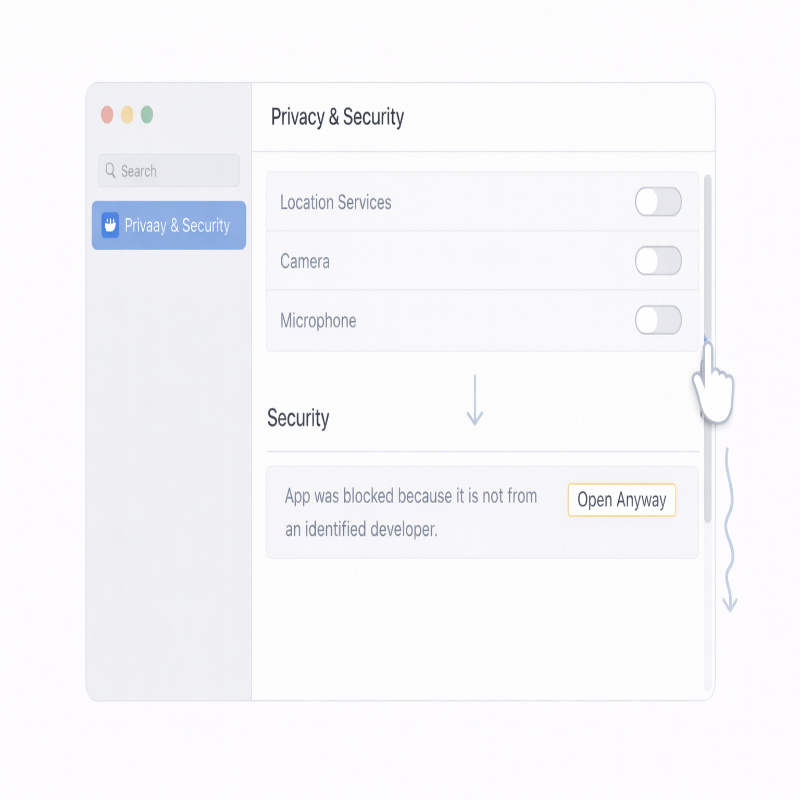
If you’re tempted to use Terminal, read this first
You’ll see advice to remove the quarantine attribute or disable Gatekeeper.
Both can work, and both can reduce your safety margin if you do them casually.
Apple warns that running software that hasn’t been signed and notarized may expose your computer and personal information to malware that can harm your Mac or compromise your privacy.
If you genuinely trust the app and want the careful Terminal walkthrough, I kept it separate on purpose: How to remove com.apple.quarantine with xattr. It’s the kind of thing you want to do slowly, not while you’re irritated.
FAQ
Why does my friend see “Open Anyway,” but I don’t?
Common reasons: you haven’t triggered the block event on your Mac recently, you’re looking in the wrong part of Privacy & Security (it’s lower on the page), or your Mac is managed by IT.
Apple specifically notes that some settings might not be available on managed Macs.
Is it safe to click “Open Anyway”?
It can be, if you’re confident the app is from a trustworthy source and hasn’t been tampered with.
Apple frames the override in those exact terms and still recommends checking the App Store for an updated version or an alternative app first.
If you want a calmer risk checklist, here’s the dedicated guide: Is it safe to bypass this warning?.
Will I have to approve it every time?
Usually no. Apple notes that once you approve an app using the Open Anyway flow, it’s saved as an exception and you can open it later by double-clicking.
If you’re being asked repeatedly, you’re likely not saving the exception correctly—or you’re actually opening a different file each time (for example, re-running the installer instead of the installed app).
Conclusion
If “apple could not verify is free of malware” is blocking you and Open Anyway isn’t showing, it’s usually one of three things: you haven’t triggered the prompt in the right order, the warning type is different (and more serious), or your Mac is managed and you don’t have the ability to override it. Try the sequence Apple describes—attempt open, then Privacy & Security—then reassess.
And if you want the bigger picture again (the meaning of the warning, the safest fixes, and when to stop), go back to the main guide:apple could not verify is free of malware.