
 Xbox Cloud Gaming Equirements: Internet, Devices, Controllers
  How to Delete Sent Messages on iPhone From Both Sides
  Real-Time Tracking in the Distribution of Goods
  Portable Monitor For Laptop Guide
  Optimizing Sales Prospecting with Modern Software Tools
  What Is One Way That Technology Can Improve The Distribution Of Goods?
  Xbox Cloud gaming: A Practical Guide For Real Life
  Game Pass vs PlayStation Plus: which is actually worth it?
  Macfox X1S installation guide: assembly, setup, and first ride checks
It is something more basic, and honestly more useful: what do I actually need for this to work well?
That is the right place to start, because cloud gaming can feel wonderfully simple when your setup is right, and strangely fragile when one small part of it is off.This guide breaks down the real Xbox Cloud Gaming requirements in plain language: internet speed, supported devices, browsers, controllers, and the little setup details that tend to matter more than people expect.
If you are brand new to the topic, you may want to begin with our broader xbox cloud gaming guide, then come back here when you are ready to sort out the practical side.
What Xbox Cloud Gaming really requires
On paper, the requirements do not look intimidating.
You need an eligible Xbox Game Pass plan, a supported device, a compatible browser or app, a decent internet connection, and usually a controller.
That sounds almost too easy, and in some ways it is.
But cloud gaming is not just about checking boxes.
It is about how those pieces work together.
A powerful laptop with weak Wi-Fi can give you a worse experience than an ordinary tablet on a stable connection.
A fast connection with congestion can feel slower than a moderate one that stays consistent.
Xbox Game Pass plan requirements
For most people, Xbox Cloud Gaming is not a separate service they buy on its own.
It is included through Xbox Game Pass plans, with current plan naming that includes Essential, Premium, and Ultimate.
If you are reading older articles, you may still see different plan language, which can make things feel more confusing than they really are.
The simplest way to think about it is this: if your goal is to stream games across devices with the fewest restrictions, you should check which Game Pass tier currently includes cloud access in your region before subscribing.
Plans, features, and catalogs can shift over time, so it is worth confirming directly on the official Xbox Cloud Gaming page instead of relying on memory or screenshots from six months ago.
If you are already comparing value and want the bigger picture, our main xbox cloud gaming article explains where streaming makes sense and where a local install may still be the better choice.
Supported devices: what you can play on
One of the most appealing things about Xbox Cloud Gaming is that the hardware barrier is lower than many people expect.
Xbox supports cloud play across a fairly wide set of devices, including Xbox consoles, Windows PCs, Mac computers, Chromebooks, Android phones and tablets, iPhone and iPad, certain smart TVs, and some handheld devices.
That flexibility is a big part of the appeal.
Still, “supported” does not always mean “equally comfortable.”
A laptop with a stable connection and a proper controller usually feels easier to live with than a phone balanced on a pillow while Bluetooth behaves unpredictably.
Both can work, obviously, but they do not always feel the same in practice.
Xbox consoles
Xbox consoles are a natural fit because cloud gaming is already woven into the broader Xbox experience.
If you own an older Xbox One, cloud gaming can also act as a bridge to some newer experiences without asking you to upgrade hardware immediately.
That is a subtle benefit, but a meaningful one.
Windows PCs
Windows PCs are often the easiest place to start if you want a clean, low-friction experience.
Xbox has noted support for Windows 10 version 20H2 and later, and browser play on a PC tends to be straightforward when everything is updated.
If you prefer precision inputs, PC is also where mouse and keyboard support matters most.
Mac and Chromebook
Mac and Chromebook support makes Xbox Cloud Gaming feel more flexible than a console-first service used to feel.
Xbox has listed support for newer macOS versions and ChromeOS 85 and later, which means many people can get started without buying anything new.
That is part of the charm here, really.
Phones and tablets
Android devices and Apple devices are both part of the Xbox Cloud Gaming ecosystem, but the setup flow is not exactly identical.
On Android, app-based options can feel more direct.
On iPhone and iPad, the browser route is usually the key path, which is why our separate guide on how to use Xbox Cloud Gaming on iPhone and iPad goes deeper into the details.
Smart TVs and streaming devices
This is where cloud gaming starts to feel almost magical.
Playing directly on a TV without a console is one of those ideas that still feels slightly futuristic, even though it is already real.
But TVs also introduce their own complications: Bluetooth pairing, app support, software updates, and Wi-Fi stability all matter more than people expect.
Browser requirements for Xbox Cloud Gaming
If you plan to play through the web, browser compatibility matters.
Xbox Support lists supported browsers for cloud gaming and remote play on the web, and that is worth checking if something feels broken for no obvious reason.
Sometimes the issue is not your connection at all; it is simply the wrong browser, or an outdated one.
In general, Microsoft Edge, Google Chrome, and Safari are the names that come up most often for supported browser play, depending on device.
If a game refuses to launch, switching browsers is still one of the least glamorous but most effective fixes.
I wish it were more exciting than that, but there it is.
Why browser choice matters more than people think
A browser is not just a window to the service.
It affects input handling, audio behavior, compatibility with controllers, and sometimes whether features like mouse and keyboard support work properly.
So if you are troubleshooting, browser choice should be treated as part of your setup, not an afterthought.
Internet requirements: speed is only part of the story
This is the part people usually oversimplify.
They ask, “How many Mbps do I need?” which is fair, but incomplete.
Xbox has recommended around 20 Mbps for a stable cloud gaming connection, and it has also pointed to around 10 Mbps for mobile scenarios.
Those numbers are helpful, but they do not tell the whole story.
What matters just as much is stability.
A connection that tests fast once but fluctuates heavily during play can still feel rough.
Cloud gaming is interactive, and every little wobble in the connection shows up faster than it would while streaming a movie.
Recommended internet speeds
As a baseline, think in tiers:
- About 10 Mbps can be enough for mobile play in lighter situations.
- About 20 Mbps is a safer target for consoles, PCs, and tablets.
- More headroom helps if other people in your home are streaming, downloading, or joining calls at the same time.
If your connection is shared with a busy household, the “available” speed during gaming matters more than the number advertised on your broadband plan.
That sounds obvious, perhaps, but it is where a lot of disappointment begins.
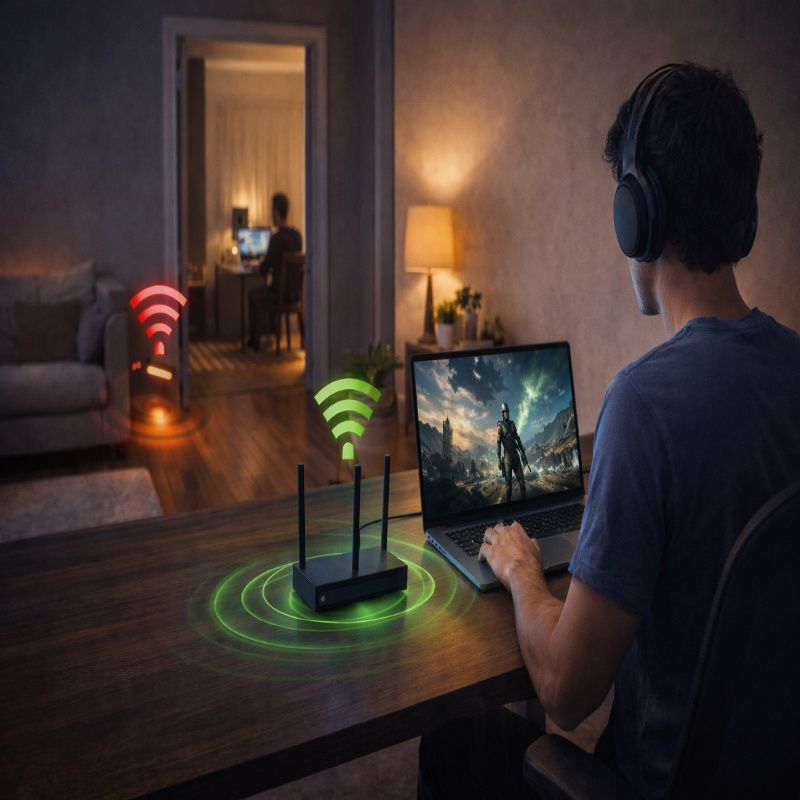
5 GHz Wi-Fi vs 2.4 GHz Wi-Fi
If your router supports both 2.4 GHz and 5 GHz, Xbox recommends using 5 GHz where possible.
That advice tends to hold up in real life because 5 GHz usually offers better performance for responsive tasks, even if its range is not always as forgiving.
If you are close to the router, 5 GHz is usually the better bet.
On the other hand, if you are two rooms away and your signal keeps dropping, the answer may not be “keep forcing 5 GHz.”
It may be moving closer, improving router placement, or switching to Ethernet.
This is where home layout becomes part of gaming quality, which feels unfair, but it is true.
Ethernet is still the boring best option
Wired Ethernet is not exciting.
Nobody brags about a cable running under a desk.
But if you want the most stable cloud gaming experience on a console or PC, Ethernet remains one of the best upgrades you can make.
It reduces the variability that Wi-Fi can introduce, and that matters a lot when you are trying to cut down on input lag, stutter, or sudden drops in image quality.
If your sessions feel inconsistent, our guide on Fix input lag on Xbox Cloud Gaming is the next place I would send you.
Controller requirements: do you really need one?
Most of the time, yes.
Xbox Cloud Gaming supports a range of controllers, and for many games a controller is still the most reliable and comfortable way to play.
If you are planning to use cloud gaming regularly, owning a dependable controller is less of an accessory and more of a requirement.
That said, there are exceptions.
Some games support touch controls, and some support mouse and keyboard on PC.
Those options are useful, but they should be treated as selective features, not universal guarantees.
Supported controller types
Xbox wireless controllers are the most obvious choice, but Xbox also supports a variety of other compatible controllers depending on platform.
The important thing is not just brand compatibility; it is connection stability.
A controller that keeps disconnecting over Bluetooth can turn a perfectly good network session into a miserable one.
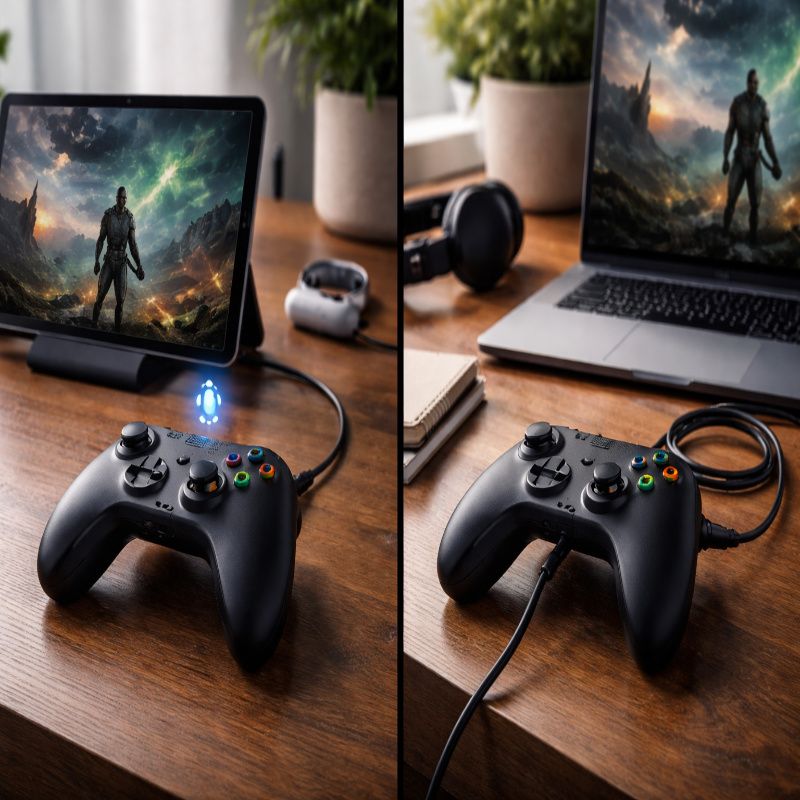
Bluetooth vs USB
Bluetooth is convenient, but convenience is not always the same thing as reliability.
On phones and tablets, Bluetooth is often the normal route.
On PCs, though, USB can be a very useful fallback when you are trying to rule out pairing issues, lag, or random disconnects.
If a controller works perfectly over USB but struggles over Bluetooth, you have learned something important.
The problem may not be Xbox Cloud Gaming at all.
It may just be the wireless link in the middle.
Mouse and keyboard support
Xbox also provides support for some cloud games on PC with mouse and keyboard, but there are limits.
According to Xbox Support, Edge and Chrome are the browsers that support mouse and keyboard functionality for cloud gaming on PC.
So if that input style matters to you, browser choice becomes even more important.
This is one of those details people tend to miss at first.
They assume any browser on any device should behave the same way, and then get confused when the experience changes.
Cloud gaming is simple at the top level, yes, but under the hood there are still conditions attached.

Operating system and software requirements
Beyond the big stuff, software versions matter.
Xbox has listed platform-specific requirements such as Windows 10 version 20H2 and later, newer macOS versions, ChromeOS 85 and later, and current mobile operating systems.
If your device is old enough that updates have stalled, cloud gaming may still work poorly or not at all.
It is tempting to ignore updates when everything else seems fine.
But outdated operating systems, browsers, or controller firmware can cause odd issues that feel random until you realize your setup is one or two versions behind.
This is not dramatic advice, just practical maintenance.
A realistic setup by device type
Best low-friction setup
If you want the easiest overall route, a Windows laptop or desktop with a supported browser, a stable 5 GHz or Ethernet connection, and a wired or well-paired controller is hard to beat.
It is not the most glamorous version of cloud gaming, but it is often the least troublesome.
Best portable setup
For portability, a phone or tablet with a controller is a strong option.
It is convenient, fast to launch, and perfect for shorter sessions.
Just keep your expectations realistic if you are relying on mobile data or a crowded public network.
Best living-room setup
A supported smart TV or streaming device with a controller can be the cleanest-looking arrangement in the house.
No console, no extra box, very little clutter.
But because everything depends on wireless performance and app support, it is also the setup where small issues can become surprisingly noticeable.
Common requirement mistakes people make
- Assuming high download speed automatically means low lag.
- Using unsupported or outdated browsers.
- Playing on crowded 2.4 GHz Wi-Fi when 5 GHz or Ethernet is available.
- Blaming cloud gaming when the real issue is Bluetooth instability.
- Expecting every game to support touch controls or mouse and keyboard.
- Forgetting that device software and controller firmware need updates too.
None of these mistakes are unusual.
In fact, they are pretty normal.
Cloud gaming sounds simple enough that people expect it to “just work,” and sometimes it does.
But when it does not, the cause is often hidden in one of these small details.
FAQ: Xbox Cloud Gaming requirements
Do I need a console to use Xbox Cloud Gaming?
No, not necessarily.
You can use supported phones, tablets, PCs, Macs, Chromebooks, smart TVs, and some streaming devices, depending on the route you want to take.
What is the minimum internet speed for Xbox Cloud Gaming?
Xbox has pointed to around 10 Mbps for mobile play and recommends around 20 Mbps for a more stable experience on consoles, PCs, and tablets.
In practice, connection stability matters just as much as raw speed.
Can I use a keyboard and mouse?
In some PC cloud gaming situations, yes.
But support is more limited than controller support, and Xbox specifically ties mouse and keyboard functionality to supported browsers such as Edge and Chrome.
Is Wi-Fi good enough, or do I need Ethernet?
Wi-Fi can absolutely be good enough, especially on 5 GHz with a strong signal.
Ethernet is still the more stable choice for consoles and PCs if you want the most consistent performance.
Conclusion
The Xbox Cloud Gaming requirements are not difficult in theory, but the details matter more than they first appear to.
A supported device, the right Game Pass plan, a decent browser or app, a stable connection, and a reliable controller are the real foundation.
Miss one piece, and the whole experience can feel shakier than it should.
If you get those basics right, though, cloud gaming starts to make a lot of sense.
It becomes flexible, quick, and surprisingly easy to fit into everyday life.
And if you want the broader strategy, strengths, and tradeoffs, head back to the full xbox cloud gaming guide before choosing your setup.