
 Xbox Cloud Gaming Equirements: Internet, Devices, Controllers
  How to Delete Sent Messages on iPhone From Both Sides
  Real-Time Tracking in the Distribution of Goods
  Portable Monitor For Laptop Guide
  Optimizing Sales Prospecting with Modern Software Tools
  What Is One Way That Technology Can Improve The Distribution Of Goods?
  Xbox Cloud gaming: A Practical Guide For Real Life
  Game Pass vs PlayStation Plus: which is actually worth it?
  Macfox X1S installation guide: assembly, setup, and first ride checks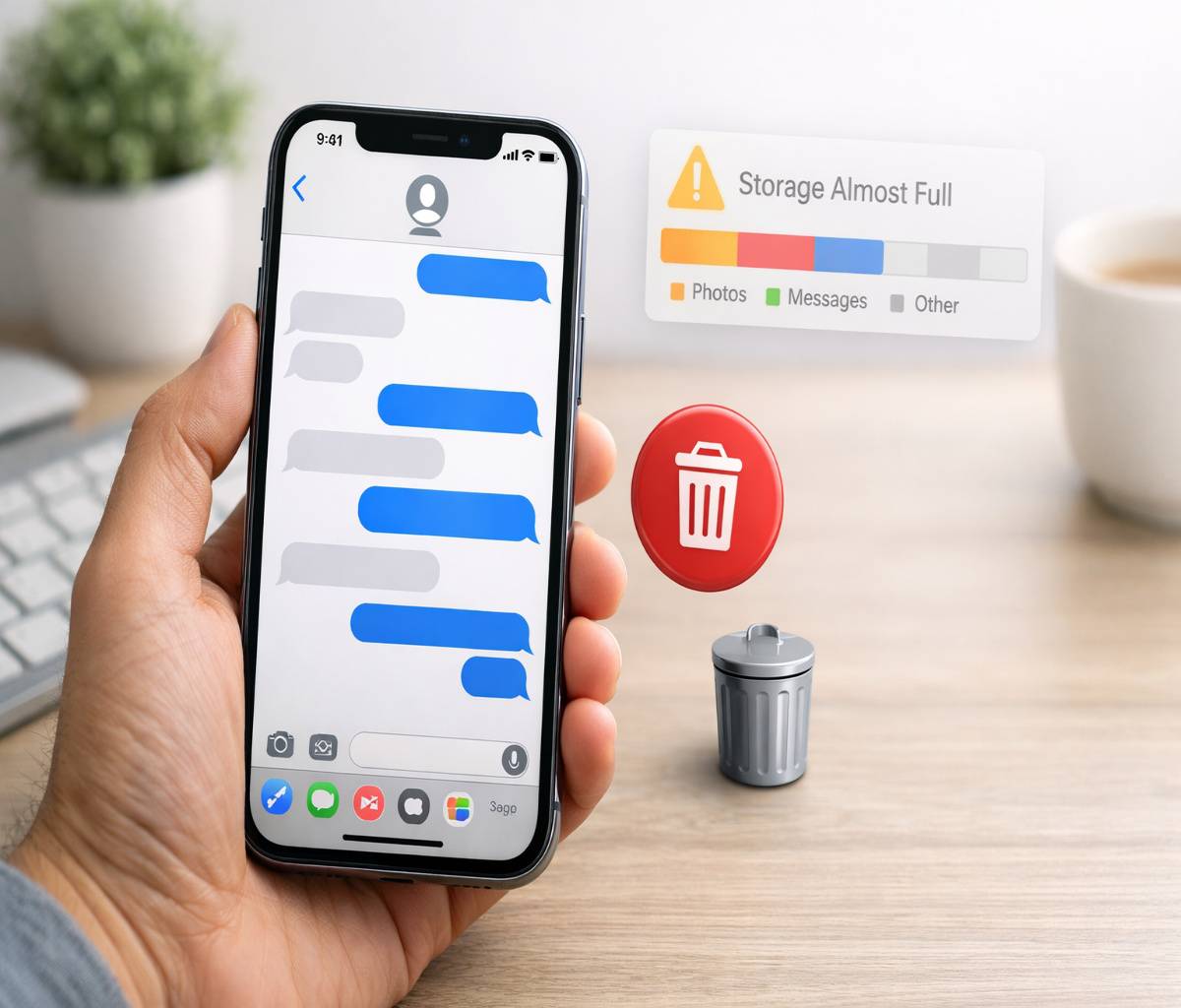
If you are trying to figure out how to delete messages on iPhone, you are probably in one of a few situations. Maybe you want to remove a single awkward text. Maybe your Messages app is full of old threads and random verification codes. Or maybe your iPhone storage is almost full, which tends to make everything feel a little more urgent.
The good news is that deleting messages on an iPhone is usually simple. The slightly less obvious part is that Apple gives you several different ways to do it, and they do not all do the same thing. You can delete one message, wipe an entire conversation, remove large attachments, recover deleted texts for a limited time, or unsend a recently sent iMessage. Those are related, but not identical, and people often mix them up.
This guide walks through the whole thing in plain English. If you want the short version, here it is: deleting a message removes it from your device, deleting a conversation removes the full thread, and permanently deleting means clearing it from the Recently Deleted area too. If your real goal is storage, it is often smarter to delete photos and videos from Messages instead of removing every conversation.
For readers who want a more specific answer about retracting a text after sending it, you can also read our guide on how to delete sent messages on iPhone from both sides. That topic needs a bit of nuance, because what people hope is possible and what Apple actually allows are not always the same.
What deleting messages on iPhone actually means
Before you start deleting things, it helps to know what each option does. I think this is where most confusion comes from. People say “delete,” but they might mean three different things.
Here are the main actions inside the Messages app:
- Delete a single message: Removes one text bubble, image, or attachment from a conversation on your device.
- Delete a conversation: Removes the entire thread from your Messages list.
- Delete from Recently Deleted: Removes messages or conversations permanently instead of leaving them recoverable for a short period.
- Unsend a message: Tries to retract a recently sent iMessage so it disappears from the conversation for both sides, but only in supported conditions.
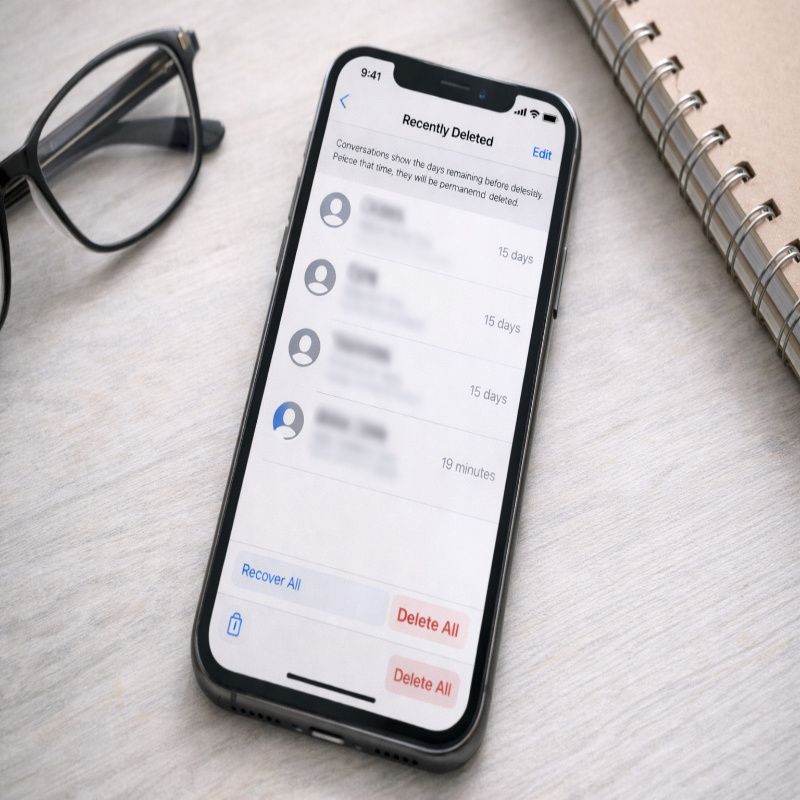
Apple also keeps deleted messages in a Recently Deleted folder for up to 30 days, which is helpful if you deleted something by mistake. Helpful, yes, but also slightly annoying if you assumed a deleted text was already gone for good.
How to delete messages on iPhone one at a time
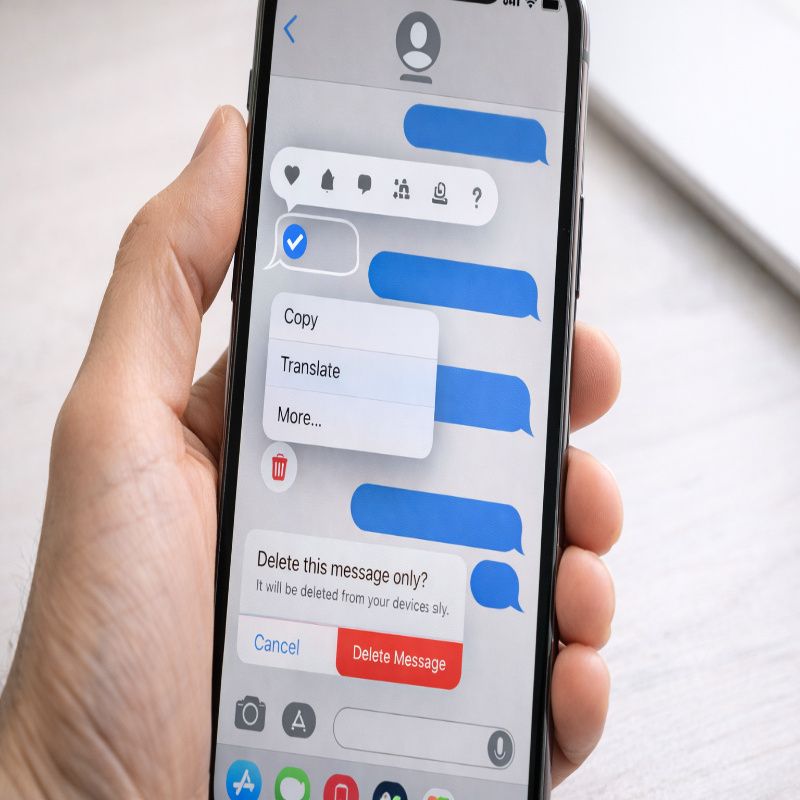
If you only want to remove one message from a conversation, this is the easiest method. It works well for single texts, photos, links, voice notes, or one-off messages you do not want sitting there anymore.
How to delete messages on iPhone inside a conversation
- Open the Messages app.
- Tap the conversation that contains the message you want to remove.
- Touch and hold the message bubble or attachment.
- Tap More.
- Select the message or additional messages if needed.
- Tap the trash icon.
- Confirm that you want to delete the selected message.
This is a good option when you want to keep the conversation itself but remove a few parts of it. Maybe an old address, maybe a duplicate photo, maybe a message that just does not need to live on your phone forever.
There is one thing worth remembering here: deleting a message from your iPhone does not erase it from the other person’s device unless you are using Apple’s unsend feature within the allowed time window. If that is your situation, the more useful guide is our article on how to delete sent messages on iPhone from both sides.
How to delete an entire conversation
Sometimes the whole thread needs to go. Maybe it is spam, maybe it is an old group chat that never really died, or maybe you just prefer a cleaner inbox. Deleting a full conversation is faster than removing messages one by one.
- Open Messages.
- Stay on the main conversation list.
- Swipe left on the conversation you want to remove.
- Tap the trash icon or Delete.
You can also delete multiple conversations at once:
- Open Messages.
- Tap Edit or the menu button near the top of the conversation list.
- Choose Select Messages.
- Tap the conversations you want to remove.
- Tap Delete.
This is often the fastest cleanup method if your Messages app is packed with delivery updates, verification codes, and old threads you are never going to open again. It is efficient, though perhaps a little blunt.
How to permanently delete messages on iPhone
This is the part many articles rush past. When you delete messages on iPhone, they are usually moved to Recently Deleted for up to 30 days. That means they can still be recovered during that period unless you remove them again from there.
If privacy matters more than convenience, you will want to clear that folder too. We go deeper into this in our guide on how to permanently delete text messages on iPhone, but the quick version is below.
- Open Messages.
- From the conversation list, tap Filters or the top-left option if visible.
- Tap Recently Deleted.
- Select the conversations or messages you want to remove.
- Tap Delete to erase them permanently, or Recover if you changed your mind.
If you do nothing, iPhone will eventually remove those deleted items on its own after the retention period. Still, if your goal is to clear personal content right away, waiting around is probably not what you want.
How to recover deleted messages if you removed the wrong one
This deserves a quick section because it happens all the time. You go in to clean up your texts, tap too fast, and suddenly the one thread you actually needed is gone. Not ideal, but often fixable.
As long as the deletion happened within the last 30 days, you can usually recover the message or conversation from Recently Deleted.
- Open Messages.
- Tap Filters from the conversation view if you see it.
- Choose Recently Deleted.
- Select the thread you want back.
- Tap Recover.
If the message is no longer in Recently Deleted, recovery gets harder and may depend on whether you have an older backup. In practice, most people either recover it quickly from that folder or they do not get another simple chance.
How to delete old messages automatically
If you do not want to keep cleaning up manually, Apple lets you automatically remove older messages after a set period. This is one of those quiet features that can save a lot of storage over time, especially if you are in active group chats or receive many media attachments.
- Open Settings.
- Scroll down and tap Apps, then Messages.
- Find Keep Messages.
- Choose 30 Days, 1 Year, or Forever.
If you select 30 Days or 1 Year, older messages will be deleted automatically after that period. This is useful, although I would pause for a second before turning it on if you rely on old texts for receipts, addresses, or sentimental conversations. People underestimate how often they search old threads.
How to delete message attachments without deleting the whole chat
Sometimes your real problem is not the conversation. It is the photos, videos, voice notes, memes, screenshots, and random files sitting inside it. Those attachments can take up a surprising amount of space, and deleting them is often smarter than wiping your message history.
If storage is your main concern, this may be the best section in the whole article. And honestly, it is the one many competing articles only touch lightly.
Delete attachments from a single conversation
- Open Messages.
- Tap the conversation you want to review.
- Tap the contact name or group name at the top.
- Scroll to sections like Photos, Links, Documents, or other shared items.
- Tap See All where available.
- Tap Select.
- Choose the attachments you want to remove, then tap Delete.
Delete large message attachments through iPhone storage
If you want a broader cleanup view, this method is often better:
- Open Settings.
- Tap General.
- Tap iPhone Storage.
- Select Messages.
- Review categories such as photos, videos, GIFs and stickers, top conversations, or large attachments.
- Delete the items that are taking up the most space.
This approach helps you target the heaviest content first, which is usually what matters if your storage is full. If that is your main use case, take a look at our more focused guide on how to delete message attachments on iPhone, where the storage cleanup process can be explained in more detail.
Can you delete sent messages from both sides?
This is probably the most misunderstood question around message deletion on iPhone. The short answer is: sometimes, but only in a specific Apple-supported way.
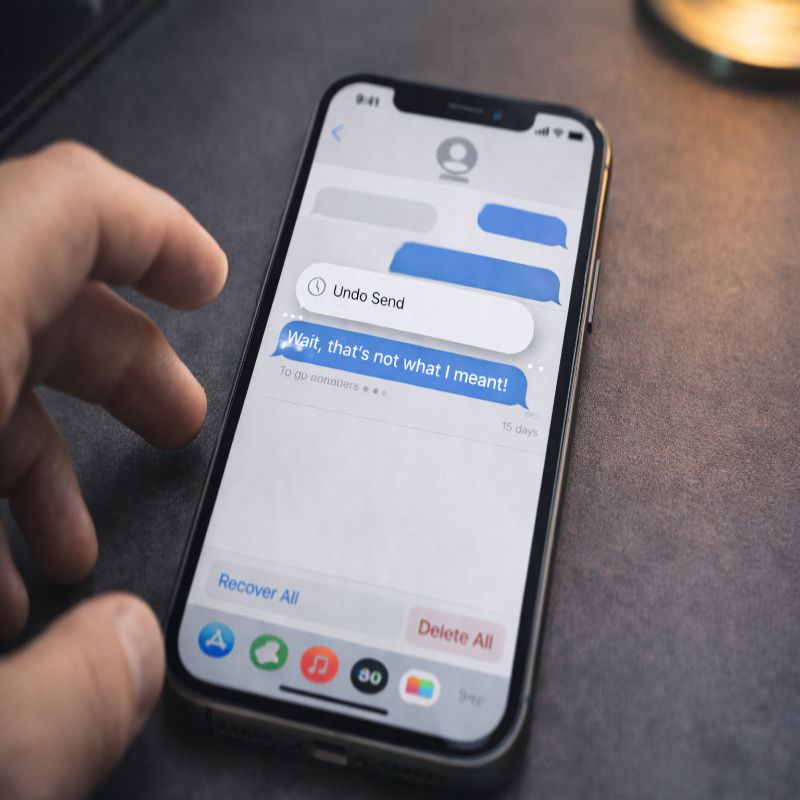
If you send an iMessage, you can use Undo Send for up to two minutes after sending it. When it works, the message is removed from both conversation transcripts and a note appears indicating that you unsent a message. But there is a catch, and perhaps two.
- It works only for iMessage, not standard SMS text messages.
- It works only within the short time limit after sending.
- If the recipient is using an older Apple software version, they may still see the message.
To unsend a supported iMessage:
- Open Messages.
- Open the conversation.
- Touch and hold the recently sent message.
- Tap Undo Send.
This is why the phrase “delete from both sides” can be misleading. You are not broadly deleting anything from another person’s phone whenever you want. You are using a limited iMessage feature under specific conditions. If you want the fuller explanation, our article on how to delete sent messages on iPhone from both sides should answer that in more depth.
What if the delete option is missing?
If something looks different on your iPhone, do not panic. Apple changes small menu labels and layouts over time, and some options only show up after a long press or from the conversation list rather than inside a thread.
If you cannot find a delete option, try these quick checks:
- Make sure you are pressing and holding the message bubble long enough.
- Go back to the main conversation list if you are trying to delete a full thread.
- Check whether your iPhone software is updated.
- Look for Filters or an Edit button at the top of Messages.
Sometimes the issue is not that the feature is gone. It is just tucked somewhere slightly less obvious than you expected.
How deleting messages affects iCloud and synced devices
If you use Messages in iCloud, your message changes may sync across your Apple devices. In other words, deleting a conversation on your iPhone can also affect what appears on your iPad or Mac. That is convenient when you want consistency, and inconvenient when you expected each device to stay separate.
This is another reason to be a little careful before doing a large cleanup. If your only goal is to free space, deleting heavy attachments may be the safer move than removing entire threads you might want later.
When deleting messages will not free much storage
There is a small but important reality check here. If your Messages app only contains plain text, deleting a few threads may not free much space at all. Text itself is tiny. The real storage hogs are usually photos, videos, GIFs, audio messages, and shared files.
So if your iPhone says storage is nearly full and you are aggressively deleting text conversations with no visible improvement, you are probably attacking the wrong part of the problem. Focus on attachments, top conversations, and large media first. That tends to make a bigger difference.
Common mistakes people make when deleting messages on iPhone
There are a few patterns that come up again and again, and avoiding them can save you some frustration.
- Assuming delete means permanent delete: It usually does not until Recently Deleted is cleared.
- Confusing unsend with delete: Deleting removes content from your device, while unsend is a limited iMessage feature.
- Deleting whole conversations to free space: This can work, but deleting large attachments is often more efficient.
- Turning on auto-delete without thinking: It is handy, but it can remove old messages you actually need.
- Expecting SMS texts to support Undo Send: They do not work the same way as iMessages.
None of those mistakes are unusual. In fact, they are pretty understandable. Apple gives you several related tools, and the labels are close enough that people naturally blur them together.
The best way to choose the right deletion method
If you are still not sure which method fits your situation, here is a simple way to think about it:
- Delete one message if you want to remove a single text or attachment from a thread.
- Delete a conversation if you no longer need the entire thread.
- Delete from Recently Deleted if you want it gone right away.
- Use Undo Send if you just sent an iMessage and need to retract it quickly.
- Delete attachments if your main goal is to free storage while keeping the conversation.
- Turn on Keep Messages limits if you want ongoing automatic cleanup.
Most people, I think, need a mix of these rather than only one. A clean setup might mean deleting junk threads, clearing large attachments, and setting old messages to auto-delete after a year. That is usually more practical than going to extremes.
Final thoughts on how to delete messages on iPhone
Once you know the difference between deleting, recovering, permanently removing, and unsending, learning how to delete messages on iPhone becomes much less confusing. The basic steps are easy enough, but the smarter move depends on whether you care most about privacy, storage, or simply cleaning up clutter.
If you just want a tidier inbox, deleting conversations is fine. If you need to free space, focus on attachments and large files. And if your concern is whether a sent iMessage can be taken back, make sure you understand the limits before you rely on it. That part catches people off guard more often than it should.