
 Xbox Cloud Gaming Equirements: Internet, Devices, Controllers
  How to Delete Sent Messages on iPhone From Both Sides
  Real-Time Tracking in the Distribution of Goods
  Portable Monitor For Laptop Guide
  Optimizing Sales Prospecting with Modern Software Tools
  What Is One Way That Technology Can Improve The Distribution Of Goods?
  Xbox Cloud gaming: A Practical Guide For Real Life
  Game Pass vs PlayStation Plus: which is actually worth it?
  Macfox X1S installation guide: assembly, setup, and first ride checks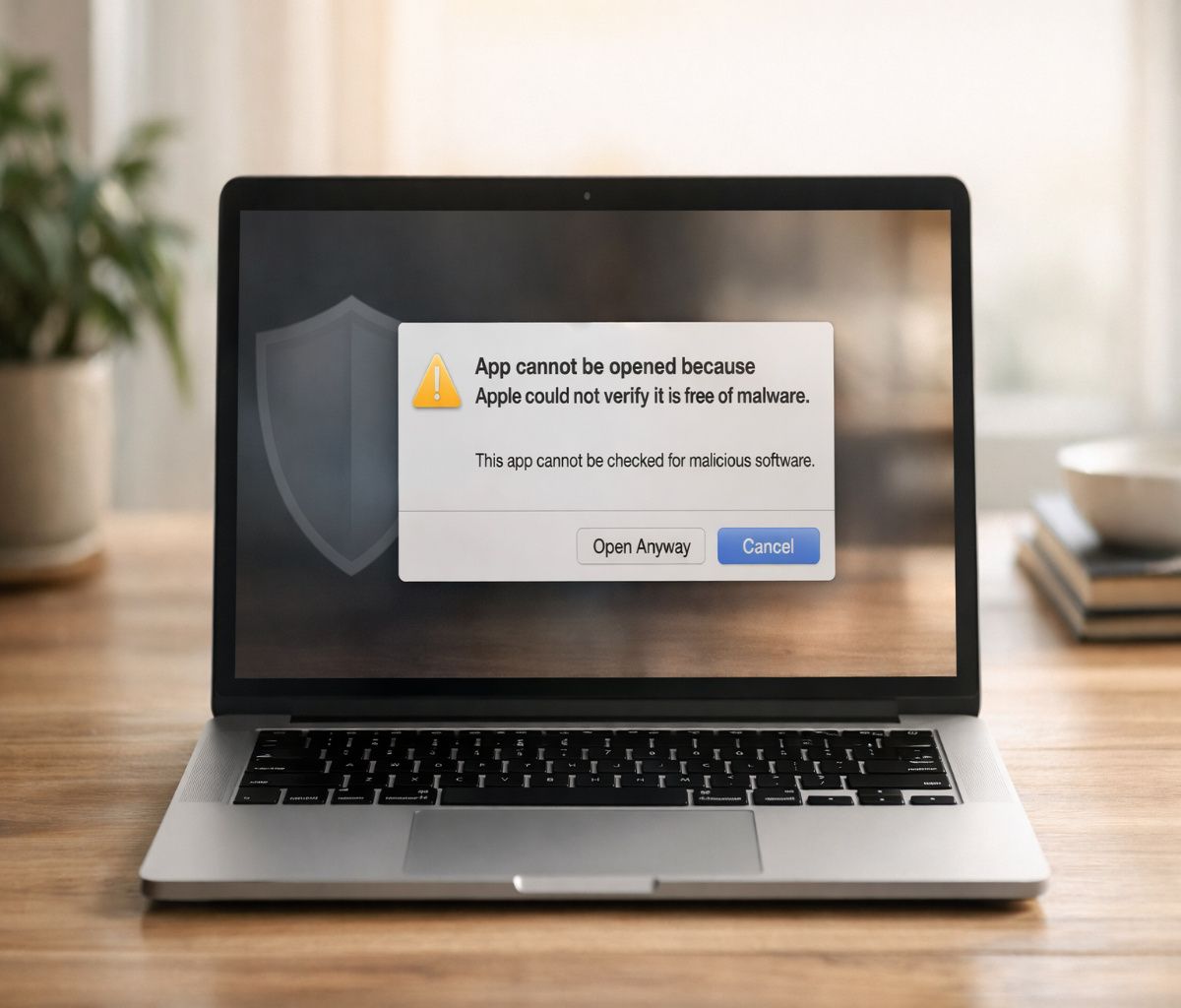
If you’re here because your Mac popped up something like “apple could not verify is free of malware,” you’re not alone. I think this is one of those warnings that feels more accusatory than it’s trying to be. It reads like your Mac is calling the app dangerous… but what it’s often saying is: “I can’t confirm this is safe, so I’m going to block it until you decide.” Apple’s built-in protection (Gatekeeper) is designed to help ensure only trusted software runs on your Mac.
The goal of this guide is simple: help you open what you intended to open, without casually disabling protections you’ll miss later.
We’ll start with the safest options, then move to more advanced fixes if you truly need them.
Why you’re seeing “apple could not verify is free of malware”
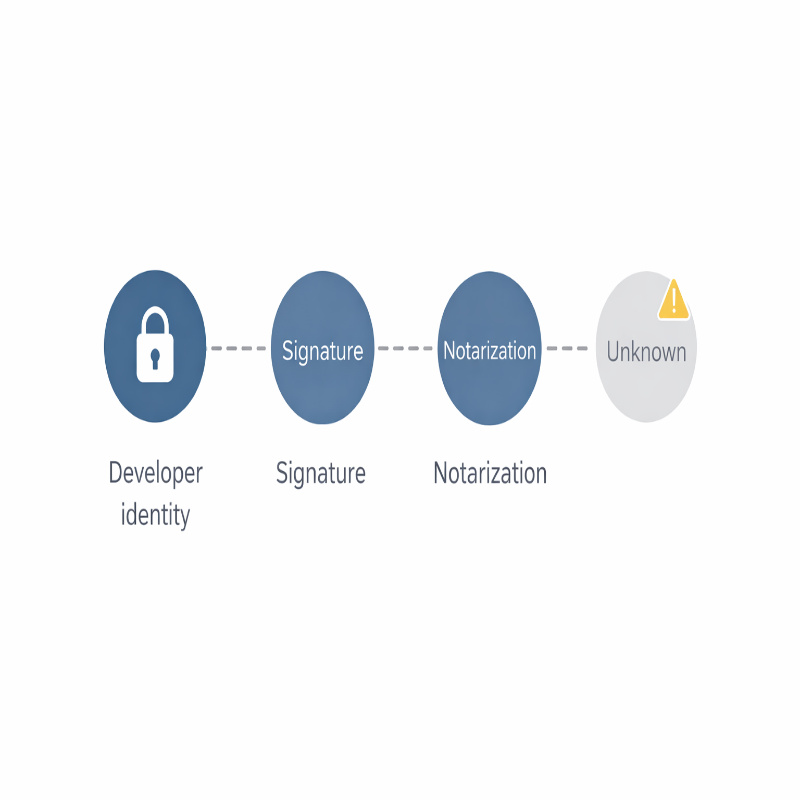
macOS uses a security technology called Gatekeeper to reduce the chances you run something harmful. When you install apps, plug-ins,or installer packages from outside the App Store, macOS checks the developer’s signature (Developer ID) to confirm the software is from an identified developer and hasn’t been altered. On macOS Catalina and later, Apple also generally requires software to be notarized, which means Apple has scanned it for known malware and none was detected at the time of notarization.
So when macOS can’t verify an app’s developer identity, signature, or notarization status, it may warn you that it can’t verify the app is free of malware.
That does not automatically mean the app is malicious. But it does mean macOS can’t give you a clean bill of health, and you’re being asked to make a judgment call. Apple explicitly recommends checking for an App Store version (or a safer alternative) first
You might also see related phrasing such as “macOS cannot verify that this app is free from malware,” “Apple cannot check it for malicious software,” or “developer cannot be verified.”
People often lump these together, and honestly, that’s fair—they usually point to the same underlying idea: verification failed somewhere in the trust chain.
Before you bypass anything (a quick reality check)
I’m going to be slightly annoying here, because this is where most bad outcomes are prevented.
Apple warns that running software that hasn’t been signed and notarized may expose your computer and personal information to malware that can harm your Mac or compromise your privacy.
So, take 30 seconds and ask:
- Did you download this app on purpose, right now, from a site you recognize?
- Was it from the Mac App Store, or the developer’s official website (not a mirror, not a “download hub”)?
- Is this an “unidentified developer” situation because the app is old, niche, or open source?
- If this is for work or school, is your Mac managed by IT (MDM), meaning some security controls might be locked down?
If your honest answer is “I’m not sure where it came from,” stop here. Delete it, empty Trash, and re-download from the official source.
That sounds dramatic, but it’s usually faster than trying to “debug” a sketchy download.
Fix it the safe way (recommended first)
Most of the time, you can resolve this without Terminal, without hacks, and without turning off Gatekeeper.
Apple’s recommended override is built into System Settings, and it’s surprisingly straightforward once you know the trick: you generally need to try opening the app once first.
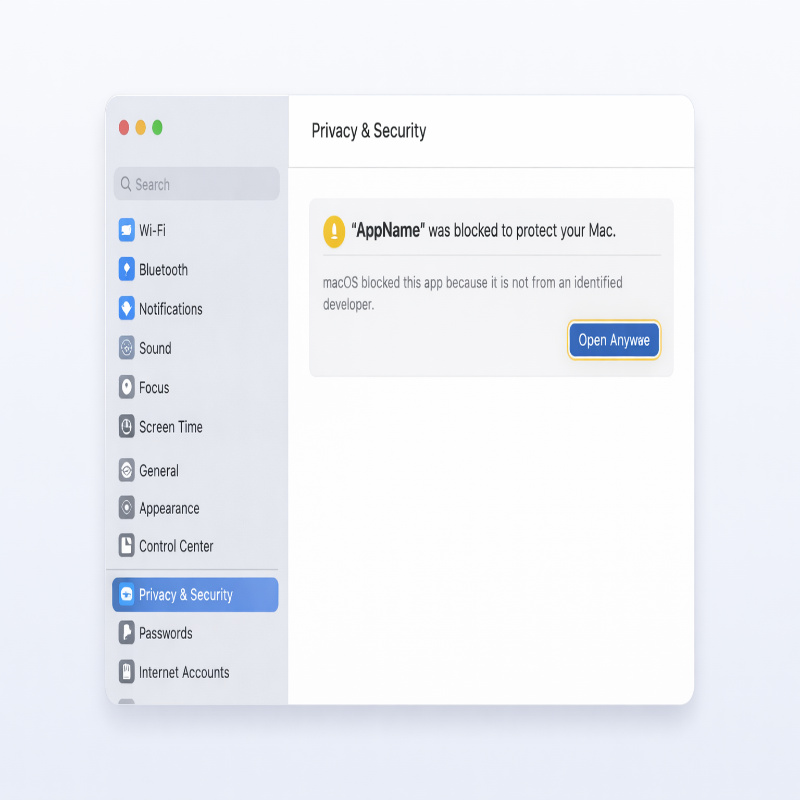
Use Privacy & Security → Open Anyway (Apple’s method)
- Try to open the app normally (double-click). Let macOS show the warning and block it.
- Open System Settings on your Mac.
- Go to Privacy & Security.
- Scroll down to the Security section and look for a message about the blocked app.
- Click Open Anyway, then confirm by clicking Open when the prompt reappears.
Apple notes that after you do this, the app is saved as an exception to your security settings, and you should be able to open it in the future like a normal app.
This is the best balance of convenience and safety for most people.
If you can’t find the button and you’re thinking “I swear I’m looking in the right place,” you’re probably not imagining it.
Sometimes it doesn’t appear until you’ve tried to open the app at least once, and sometimes managed Macs restrict these settings.
If you want the dedicated walkthrough, see: Open Anyway not showing? Try this first.
Control-click → Open (quick one-time approval)
Another common approach is to control-click (or right-click) the app in Finder and choose Open.
Some guides recommend this because it triggers a slightly different confirmation flow than double-clicking.
NordVPN describes using a control-click method to allowlist and open an app when Gatekeeper blocks it.
- Open Finder and locate the app (often in Applications).
- Hold Control and click the app (or right-click).
- Click Open, then confirm Open again if prompted.
If that works, great. If the warning comes back repeatedly, don’t keep doing the same thing hoping it “sticks.”
That’s usually your cue to use the Privacy & Security “Open Anyway” path or move to a more specific fix below.

Check your Gatekeeper settings (without disabling security)
In System Settings, macOS has an “Allow apps downloaded from” area. Apple notes you can allow apps from the App Store only,
or from the App Store and identified developers. If you’re set to App Store only, macOS will refuse apps that didn’t come from the App Store until you change that preference.
One subtle point: changing this doesn’t magically make unknown apps safe. It just changes what macOS will allow you to run.
If you’re doing this because you regularly install reputable tools outside the App Store, it can be reasonable. If you’re doing it “just this once,” I’d rather you use Open Anyway.
If it still won’t open (advanced fixes, use with care)
This is where articles get a little too casual, in my opinion. Yes, there are powerful fixes. But the more powerful the fix,
the more it assumes you’re certain the app is legitimate and hasn’t been tampered with.
Remove the quarantine attribute (Terminal)
When you download an app from the internet, macOS can attach a “quarantine” attribute that prompts Gatekeeper to verify it.
NordVPN describes this as a quarantine attribute that can trigger the verification error, and explains that you can remove it using Terminal if you’re confident the app is safe.
If you’re comfortable with Terminal, here’s the careful version I prefer:
- Move the app to your Applications folder if it’s not already there (optional, but keeps paths simpler).
- Open Terminal (Applications → Utilities → Terminal).
- Type the command below, then drag the blocked app into the Terminal window to insert the path.
xattr -d com.apple.quarantine /path/to/YourApp.appNordVPN also notes you can drag the app into Terminal to fill the path automatically, which is a nice little trick and reduces typos. After running the command, try opening the app again.
If the app is a folder-style .app bundle and you need to apply it more broadly, you might see advice online about using a recursive flag.
That can be legitimate, but I’d keep that discussion in a dedicated guide so people don’t copy-paste blindly.
If you want that deeper walkthrough, read: How to remove com.apple.quarantine with xattr.
Disabling Gatekeeper (last resort, then re-enable)
You’ll find instructions on the internet that say, essentially, “just disable Gatekeeper.”
And yes—this can work when everything else fails. But it also widens the door for the next random download to run more easily.
NordVPN describes disabling Gatekeeper with sudo spctl --master-disable and re-enabling it with sudo spctl --master-enable, and it explicitly warns that this weakens your Mac’s security.
If you decide to do it anyway, my honest recommendation is: do it only while you’re installing/opening the one app you trust, then re-enable immediately.
Treat it like temporarily propping open a locked door—not like changing your locks forever.
Common scenarios (what’s probably happening)
This section is here because most people don’t have “a Gatekeeper problem.” They have a very specific situation, and the generic fix doesn’t quite match it.
If you recognize your case, you’ll save time.
The app is from a real developer, but macOS still blocks it
This can happen if the app isn’t notarized, if it’s an older version, or if you downloaded it in a way that breaks the expected signature checks.
Apple notes that if the developer can’t be verified and (in macOS Catalina and later) the app hasn’t been notarized, macOS can’t verify the app is free of malware. The fastest fix is often: download the newest version from the official source and try again.
“Open Anyway” isn’t there
Sometimes it doesn’t show until after you attempt to open the app once. Apple’s instructions specifically say to try to open the app,
then go to Privacy & Security and use Open Anyway. Also, if your Mac is managed by an IT department, Apple notes some settings may not be available.
If you want a practical checklist (including the “where did Apple move this setting this year?” problem), here it is:
Fix: Open Anyway button not showing.
It’s an installer package (.pkg) or a plug-in, not a typical app
Apple calls out that macOS checks apps, plug-ins, and installer packages from outside the App Store. In practice, .pkg files can trigger similar warnings, but the “right-click Open” trick may feel different because you’re launching an installer workflow.
If you’re stuck, go back to the source (official download page), re-download, and then use the Privacy & Security override if you trust it.
The warning says the app “will damage your computer” or it’s “damaged”
This is a different category of alert, and I wouldn’t treat it as the same as “can’t verify.”
Apple states that if macOS detects malicious content or the app’s authorization has been revoked, it can notify you that the app will damage your computer, and if it detects known malware it may move the app to the Trash.
In that case, the right move is usually to delete the app and get a clean copy from the official source (or choose an alternative).
How to decide if it’s safe to proceed
Let’s be honest: most people reading this are not trying to run malware. They’re trying to install a tool they need.
But attackers rely on that exact mindset—“I just need this to work”—to get you to click through warnings.
Apple’s stance is clear that unsigned/unnotarized software can expose your Mac and personal information to malware that can harm your Mac or compromise your privacy.
So here’s a more human way to decide:
- Proceed (usually) if you got the app directly from the developer’s official site, you were expecting it, and it’s a known product with a real support footprint.
- Pause if the download came from a third-party “catalog” site, a random forum link, or a file host you didn’t choose.
- Stop if you’re being pushed to disable security features broadly, install “helper” tools you didn’t expect, or type your password repeatedly for unclear reasons.
If you want a more structured checklist (including what to do when you’re only “kind of” sure), I put it here: Is it safe to bypass this warning?.
FAQ
Is “apple could not verify is free of malware” a virus warning?
It’s a safety warning, but not a diagnosis. It means macOS can’t verify the app’s trust signals (developer identity/notarization) well enough to approve it automatically.
Apple explains that when the developer can’t be verified and the app hasn’t been notarized, macOS can’t verify the app is free of malware.
What’s the safest way to open the app anyway?
Apple’s built-in “Open Anyway” flow is the safest override because it’s scoped to the specific app you attempted to open, and it keeps the rest of Gatekeeper intact.
If you can get the app from the App Store instead, that’s even better—Apple notes the App Store is the safest place to get apps because Apple reviews and signs them and can remove problematic apps.
Why does macOS care about notarization?
Apple explains that notarization indicates Apple checked the app for malicious software and none was detected at the time, and that macOS Catalina and later generally requires notarization by default. It’s not a guarantee of perfection, but it’s a meaningful baseline signal.
Can I just disable Gatekeeper and be done with it?
You can, but you probably shouldn’t treat it as a casual fix. Disabling Gatekeeper reduces protections, and even NordVPN—while providing the steps—explicitly warns it weakens your Mac’s security and recommends re-enabling afterward. If you’re going to do it, do it briefly, then turn it back on.
Conclusion
When you see “apple could not verify is free of malware,” it’s macOS asking you to slow down and confirm the app is trustworthy—not necessarily accusing the app of being harmful. Apple recommends checking the App Store for an updated version or an alternative first, and only overriding security settings if you’re certain the app is from a trustworthy source and hasn’t been tampered with. Start with the built-in “Open Anyway” path, keep Gatekeeper protections on whenever you can, and use Terminal-based fixes only when you understand what you’re changing. If you want, bookmark the guides for the two spots people get stuck most often: Open Anyway missing and xattr/quarantine fixes.