
 Xbox Cloud Gaming Equirements: Internet, Devices, Controllers
  How to Delete Sent Messages on iPhone From Both Sides
  Real-Time Tracking in the Distribution of Goods
  Portable Monitor For Laptop Guide
  Optimizing Sales Prospecting with Modern Software Tools
  What Is One Way That Technology Can Improve The Distribution Of Goods?
  Xbox Cloud gaming: A Practical Guide For Real Life
  Game Pass vs PlayStation Plus: which is actually worth it?
  Macfox X1S installation guide: assembly, setup, and first ride checks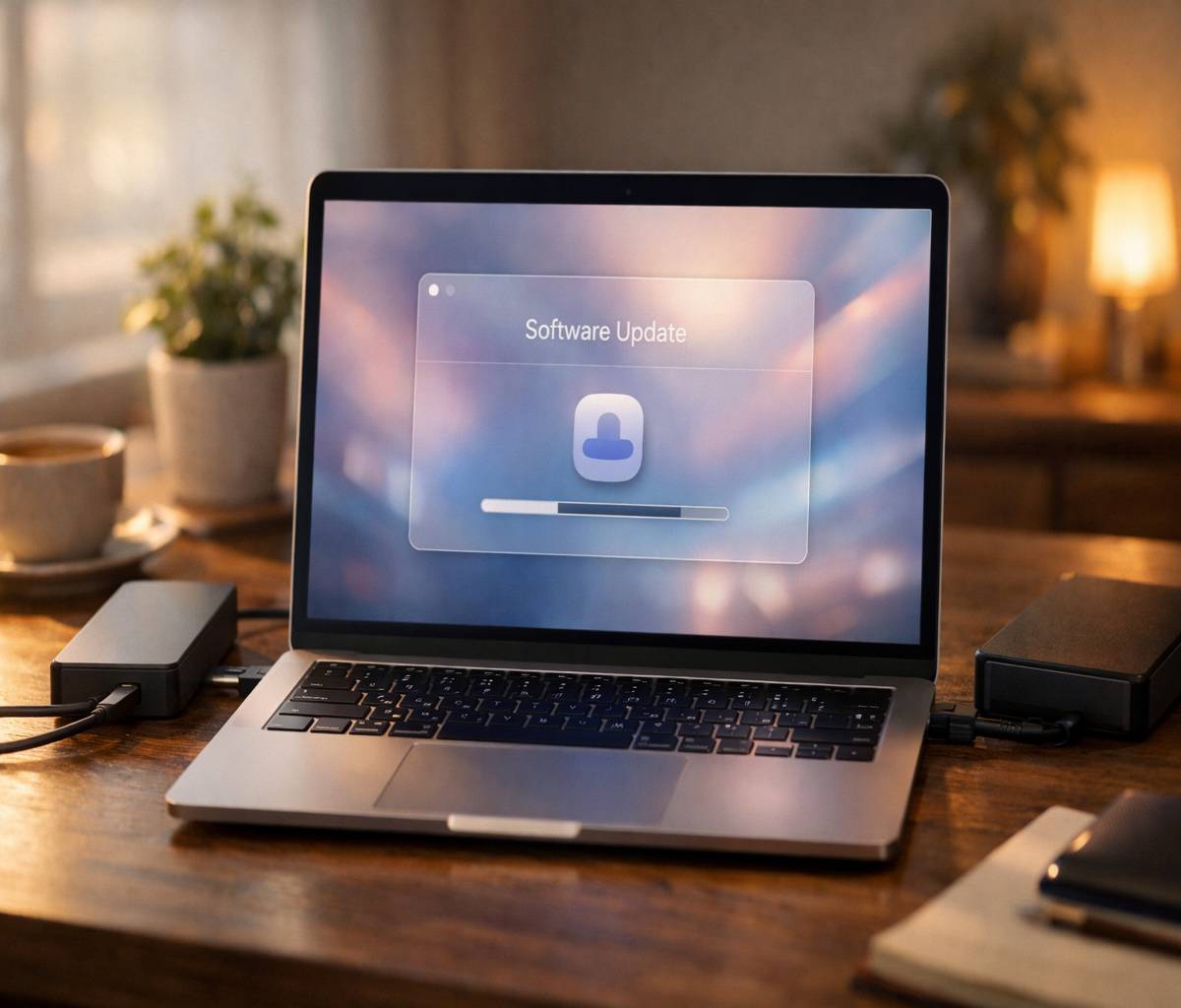
Upgrading a Mac is usually easy… until it isn’t. If you’re moving to macos tahoe, the goal isn’t just “get it installed.” It’s get it installed and keep your files, apps, and sanity intact.
This guide walks you through a careful, real-world upgrade flow: check compatibility, back up, install, and handle the most common snags.
If you want the broader overview first—what’s new, what’s changed, and whether it’s even worth upgrading—start with macos tahoe.
Before you upgrade: a quick reality check
Apple’s own guidance for upgrading to macOS Tahoe starts with two things: confirm your Mac is compatible, and make a backup before you do anything else.
That order matters more than people think, especially if you’re upgrading on a work machine.
1) Check compatibility (don’t skip this)
It’s tempting to assume your Mac can run the latest version because it ran the last one. With Tahoe, compatibility is more selective, especially for Intel models.
Apple provides an official compatibility list and recommends using Software Update because it only offers software compatible with your Mac.
Here’s the practical way to approach it:
- If you have an Apple silicon Mac (M-series), you’re usually in good shape.
- If you have an Intel Mac, double-check the exact model/year before you plan the upgrade.
- If you’re unsure of your model, open Apple menu > About This Mac and note the year and chip.
If you’re also weighing the “should I upgrade or wait?” question, the decision framework in macos tahoe
helps you think it through without overcomplicating it.
2) Make a backup (Time Machine is the simplest)
I’ll be blunt: a backup is what turns an upgrade from “high-stakes event” into “reversible change.”
Apple recommends backing up before upgrading, and Time Machine is the most straightforward option for most people.
The quickest, safest version looks like this:
- Connect an external drive (ideally at least twice your Mac’s internal storage size).
- Set it up as a Time Machine disk in System Settings.
- Run a backup and wait for it to complete.
3) Do a quick “app risk” scan
This part is unglamorous, but it saves time later. Before you install, check the apps you cannot afford to have break:
audio tools, video call utilities, drivers, VPN clients, enterprise security software, DJ tools, printer/scanner utilities.
If your setup includes specialty tools, you might also want to skim the design and usability changes that can affect day-to-day work,
especially if you’re sensitive to UI changes. That’s why we keep a separate guide on macos tahoe design settings and fixes so you can adjust things quickly after the upgrade.

How to upgrade to macos tahoe (step by step)
Apple’s recommended method is to use Software Update. It’s generally the fastest path, and it only shows compatible software for your Mac.
Step 1: Plug in power and use a stable connection
If you’re on a laptop, connect to power. Then make sure you’re on a reliable internet connection.
Tahoe is a major upgrade, and interruptions can turn “simple” into “annoying.”
Step 2: Open Software Update
Go to Apple menu > System Settings > General > Software Update.
Your Mac will check for available updates and upgrades, and you should see macOS Tahoe if your Mac is eligible.
Apple’s official Tahoe upgrade page outlines the same path (and includes the compatibility list): How to upgrade to macOS Tahoe.
Step 3: Start the upgrade and follow prompts
Click Upgrade Now (or the equivalent option shown), then follow the prompts.
You may be asked for an administrator password, and your Mac will restart during installation.
This is where people get impatient. My advice, slightly boring but true: let it run, don’t force restarts, and don’t assume it’s “stuck” unless it’s been idle for a very long time.
Step 4: After install, check the basics
Once you’re back on the desktop, do a quick post-upgrade sweep before you dive back into work:
- Confirm your files and key apps open normally.
- Open System Settings and approve any permissions prompts you recognize (screen recording, microphone, accessibility).
- Run Software Update again—point updates often appear soon after the major upgrade.
If you want a calm, high-level tour of what you just installed (and what to try first), the main guide at macos tahoe
is a good companion piece.

Troubleshooting: common upgrade snags (and what to do)
Most macOS upgrades go smoothly. Still, a few predictable issues show up often enough that it’s worth planning for them.
Not because Tahoe is “bad,” but because every major OS update changes enough under the hood that edge cases appear.
You don’t see macos tahoe in Software Update
- Double-check compatibility (model/year and whether you’re on Intel).
- Make sure you’re connected to the internet and not using a restricted network profile.
- Restart the Mac and check Software Update again.
The download is slow
- Pause other heavy downloads and try again later (launch-week traffic can be real).
- If possible, use wired Ethernet or a stronger Wi‑Fi connection.
- Leave the Mac awake; sleeping can interrupt long downloads.
You’re worried about the new design after upgrading
This is more common than people admit. Even if you like the look, new UI can feel “too much” for a few days.
If you want to settle it down—reduce visual intensity, adjust Control Center behavior, or make things feel more familiar—use macos tahoe design settings and fixes.
A critical app isn’t working
Start simple: update the app, reboot, and confirm any required permissions in System Settings.
If it’s a tool with drivers/plugins (audio interfaces, DJ gear, security tools), check the vendor’s compatibility notes.
If you hit a wall and you have a Time Machine backup, that’s your safety net. You can restore your system to how it was before the upgrade,
which is exactly why we front-loaded backups earlier.
When to upgrade now vs wait
Here’s the slightly contradictory truth: upgrading early is how you get new features sooner, but waiting is how you get a calmer experience.
Both are rational choices.
- Upgrade soon if you’ve backed up, checked app compatibility, and you actually want Tahoe’s changes.
- Wait if you rely on specialized tools, you’re in a busy work period, or your Mac is mission-critical and downtime is expensive.
- Consider a “weekend upgrade” if you want breathing room to troubleshoot without pressure.
And if you want a wider view—features, design changes, continuity upgrades, and what point updates add—go back to macos tahoe. It’ll help you decide whether you’re upgrading for substance, for curiosity, or just because the notification won’t stop staring at you.