
 Xbox Cloud Gaming Equirements: Internet, Devices, Controllers
  How to Delete Sent Messages on iPhone From Both Sides
  Real-Time Tracking in the Distribution of Goods
  Portable Monitor For Laptop Guide
  Optimizing Sales Prospecting with Modern Software Tools
  What Is One Way That Technology Can Improve The Distribution Of Goods?
  Xbox Cloud gaming: A Practical Guide For Real Life
  Game Pass vs PlayStation Plus: which is actually worth it?
  Macfox X1S installation guide: assembly, setup, and first ride checks
If you’ve been circling the update button and not quite clicking it, you’re not alone. macos tahoe (macOS 26) is one of those releases that feels big in a very visible way—because of the new look—but it’s also quietly practical in places, especially if you live in Spotlight and bounce between an iPhone and a Mac all day.
I think that mix is exactly why people are split on it.
This guide is meant to be the tab you keep open while you decide: what’s genuinely new, what’s just different, what changed in recent point updates like 26.2, and what you should check before upgrading. And yes, we’ll talk about the design. You can’t avoid it.
macOS Tahoe at a glance
macos tahoe brings a system-wide “Liquid Glass” visual redesign, plus a more capable Spotlight that can run actions directly, and tighter iPhone-style continuity features—most notably a Phone app experience on the Mac. It’s also an important line in the sand: Apple has said Tahoe is the final major macOS release to support Intel Macs, and only a limited set of Intel models qualify.
- Big theme: a translucent, layered interface (“Liquid Glass”) across the system UI.
- Big productivity change: Spotlight can do more than find—now it can act (run shortcuts, send messages, create events, and more).
- Big continuity shift: more iPhone-like experiences on Mac, including Phone features.
- Big reality check: compatibility is narrower than many people expect, especially on Intel.
If you’re here because you just want to update safely (or you’re trying to recover from a past “why did I update on a deadline?” moment), jump to our step-by-step guide: how to upgrade to macos tahoe.
What’s actually new in macos tahoe (the useful stuff)
A lot of coverage ends up sounding like a feature inventory. That’s fine, but it doesn’t help with the real question: what changes the way you use your Mac on a random Tuesday?
For most people, the answer starts with Spotlight, then spills into communication tools, and then—maybe—into gaming and the “nice to have” extras.
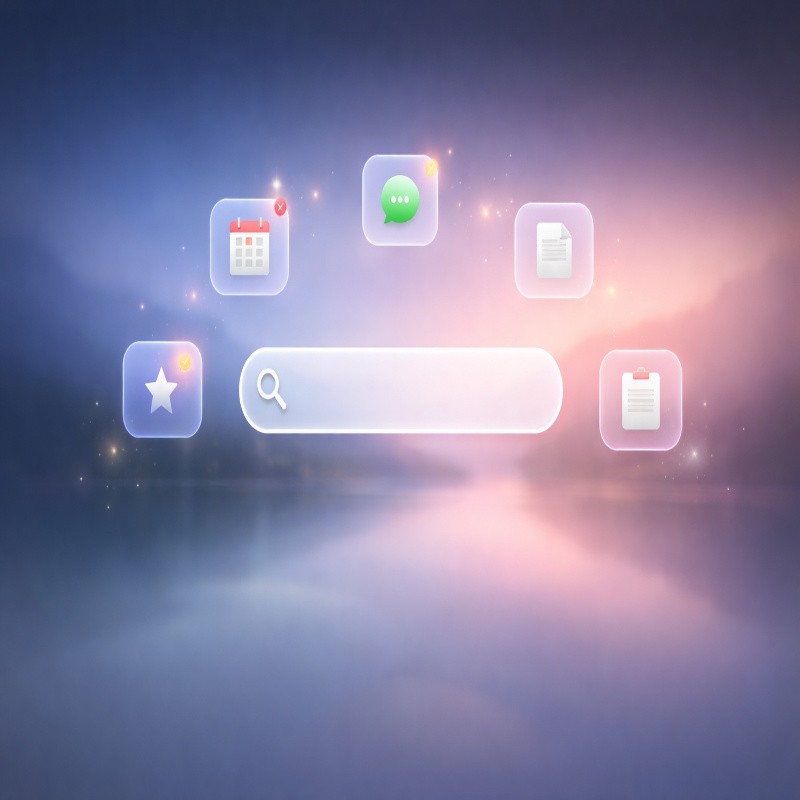
Spotlight is no longer “just search”
Spotlight in macos tahoe is designed to be more action-oriented. Instead of hunting through menus, you can trigger many system and app actions right from Spotlight—things like sending messages, creating events, and running shortcuts—without leaving the keyboard.
It also adds the idea of quick keys for actions you repeat, which is the kind of small thing that sounds minor until it becomes muscle memory.
The best way to see whether this matters to you is simple: think about how often you hit Command + Space today. If the answer is “constantly,” Tahoe’s Spotlight changes are probably one of the most meaningful upgrades in the entire release.
The Phone app on Mac: surprisingly… useful?
The headline here is that the Phone experience is more present on macos tahoe, extending iPhone-style calling features onto the Mac. On paper it can feel redundant—your phone is right there—but in practice, taking a call while your hands are on the keyboard can be genuinely convenient.Not life-changing. Just… smoother.
If you want the deeper breakdown—what works well, what depends on your iPhone setup, and what the calling features feel like day to day—this is where the dedicated post helps: macos tahoe continuity and Phone features.
Messages, Notes, and the “everyday apps” effect
A macOS update lives or dies by the small stuff. Tahoe includes a range of app updates across Apple’s built-ins, and those changes tend to matter most when they reduce friction: fewer clicks, less window juggling, and better continuity across devices.Some of these updates will land as “cool,” others as “finally.”
One thing worth keeping in mind: if your workflow is mostly third-party apps (Slack, Notion, Chrome, etc.), the “everyday app” improvements might not be your reason to upgrade. But they can still make the OS feel more cohesive—assuming you like the new design direction.
Games and Metal: important for some, invisible for others
Tahoe adds a more explicit gaming layer to macOS, including Apple’s Games app concept and graphics/platform improvements that help developers. If you play games on your Mac—or you’re using a Mac that’s essentially a home machine for your family—this can be a real plus.If you don’t, you may never open it. And that’s okay.

The macos tahoe design changes (and why people react strongly)
Let’s be honest: the “Liquid Glass” redesign is the first thing you notice. It’s translucent, layered, and more iPhone-adjacent in the way it treats surfaces and controls. The menu bar transparency is also more pronounced, which can make the display feel larger and airier.It can look great. It can also feel busy, depending on your wallpaper and your tolerance for visual motion.
The Control Center has also been redesigned to match the new aesthetic more closely. If you customize quick toggles a lot, you’ll probably appreciate the direction—even if it takes a couple days to stop feeling “new.”
macos tahoe design complaints (the real ones)
Some criticism is purely taste. That part is hard to argue either way.
But a few complaints are more concrete, like usability regressions that show up in the annoying micro-moments: resizing windows, hitting corners precisely, or dealing with controls that look bigger than the actual clickable area.
If any of that sounds familiar, there are settings and small adjustments that can make Tahoe feel calmer and more predictable. And yes, this is the part where it’s okay to admit you want the “old” feeling back—at least a little.
We pulled those options and tweaks into a dedicated guide here: macos tahoe design settings and fixes.
Compatibility and “should you upgrade?”
This is where macos tahoe gets less philosophical and more practical. Tahoe supports Apple silicon Macs broadly, but Intel support is now limited—and Apple has positioned Tahoe as the final major macOS release that will support Intel Macs at all.So if you’re on Intel and your Mac is eligible, this update can feel like both an upgrade and a last stop.
A simple way to decide:
- Upgrade sooner if you want the new Spotlight behavior, you like the new design direction, and your must-have apps are already compatible.
- Wait for another point release if you rely on audio/video tools, drivers, plugins, or mission-critical software that tends to lag behind major OS changes.
- Stay put if your Mac is near the edge of support, you’re happy with your current setup, or you can’t afford downtime right now.
If you’re unsure, the safest move is usually to treat this like a small project: check your Mac model, confirm your app compatibility, make a backup, and then upgrade when you have time to troubleshoot—because, realistically, something always needs a quick re-login or a permissions toggle afterward.The walkthrough here is made for that: macos tahoe upgrade guide.
macos tahoe 26.2 and point updates: what changed after launch
The launch version is only the beginning. Apple’s macOS point updates tend to be where the OS stabilizes, performance edges get smoothed out, and a couple of “oh, that’s actually nice” features quietly appear.
Tahoe is no different.
One of the notable additions in macos tahoe 26.2 is a video-call feature called Edge Light on Apple silicon Macs. The idea is simple: your Mac’s display can act like a virtual ring light in low light, and the effect can be customized (like width and temperature) so you can tune it to your preference.It’s the kind of feature you don’t think you need until you’re five minutes into a call and realize your room lighting is doing you no favors.
Apple has also continued to improve Tahoe through updates focused on stability, performance, and compatibility, and it’s generally recommended to stay current once you’re on the Tahoe track.
Common questions people ask before upgrading
Is macos tahoe worth it if I don’t care about the new design?
Maybe. If Spotlight improvements and continuity features matter to you, you can benefit even if the design isn’t your favorite.But if you’re allergic to visual change and your current setup is stable, it’s completely reasonable to wait until you actually want a feature rather than upgrading out of habit.
Is macos tahoe safe for work machines?
It depends on what “work” means in your world. For office-style workflows, Tahoe is often fine—especially after point updates. For specialized setups (audio production, DJ software, niche peripherals), the smartest path is checking compatibility first and upgrading only when your core tools explicitly support it.
What should I do before installing?
Back up, make sure you have enough storage, update your critical apps, and plan a time window where you can troubleshoot calmly if something acts up.The detailed checklist and step-by-step install flow is here: how to install macos tahoe.
Final thoughts on macos tahoe
macos tahoe is one of those releases where the “headline” is visual, but the long-term value is functional: Spotlight actions, deeper continuity, and a steady rhythm of point updates that make the platform feel more modern.Still, it’s not a universal recommendation. If you love stability more than novelty—or you’re on an older Intel Mac that’s barely on the guest list—waiting can be the most sensible choice.
If you do upgrade, do it like a person, not like a headline: check compatibility, read the upgrade steps once, back up, and give yourself a little buffer time.And if you end up liking macos tahoe more than you expected… honestly, that happens too.